Introduction
Modern search applications require more than just matching keywords. They demand understanding user intent and context. This blog post explores how semantic and hybrid search methods in OpenSearch AI search compare to traditional keyword search, and how you can use these capabilities for more relevant results.
Traditional search in OpenSearch
Traditional search in OpenSearch uses lexical methods, meaning it matches keywords from a user’s query to those in the indexed data. This technique is quick and works well for exact matches, but it can overlook the user’s intent, resulting in less relevant results when queries are unclear or worded differently than the indexed information.
AI search in OpenSearch
AI search in OpenSearch introduces advanced techniques such as semantic, hybrid, and conversational search. These approaches understand context and meaning, delivering more relevant results.
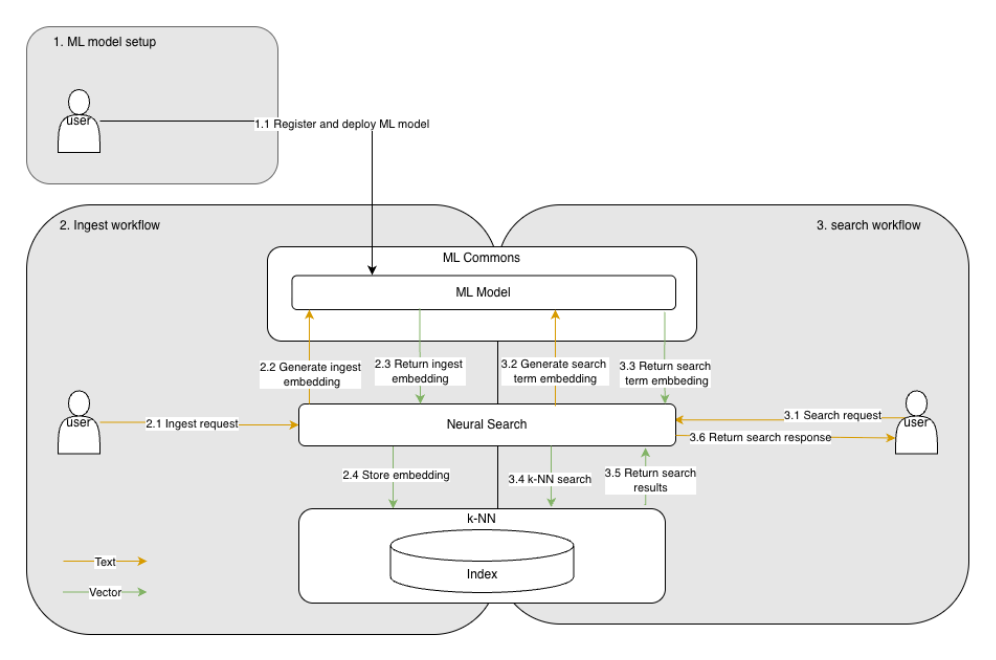
AI search in OpenSearch relies on three key plugins:
- MLCommons supports various machine learning models
- Neural search used to create vector embeddings from inputs
- k-Nearest Neighbor (k-NN) saves these vector embeddings in vector indices and carries out similarity searches based on those vectors.
OpenSearch AI search has a flexible architecture and can be configured to use either local or external models. In this blog, we will focus on how AI search works when using a locally hosted model, with a generic architecture without dedicated ML nodes.
See the workflow diagram below for details.
Step by step setup
Prerequisites
To get started, make sure your OpenSearch cluster has the following plugins enabled:
- k-NN
- MLCommons
- Neural search
- Flow framework
- Search relevance
NetApp Instaclustr offers support for the AI Search Plugin within its managed OpenSearch service, providing a convenient solution for accessing all necessary plugins. For instructions on enabling the AI Search Plugin in Instaclustr’s Managed OpenSearch service, refer to this documentation, and feel free to reach out to our support team if you have any questions.
Step 1: Register and deploy a ML model locally
The first step is to register and deploy a machine learning model in the OpenSearch cluster, which will generate vector embeddings.
Vector embeddings are numerical representations that group related items, such as documents or images, based on semantic similarity rather than exact matches. This enables concept-based searches, making vector databases vital for AI applications like semantic search, recommendations, and large language models, where context and meaning matter more than exact values.
In this example, we send the following request to register and deploy a sentence transformer from OpenSearch’s pre-trained models to convert text into dense vector embeddings. We selected huggingface/sentence-transformers/msmarco-distilbert-base-tas-b , a model that produces 768-dimensional dense vectors and is optimized for semantic search.
|
1 2 3 4 5 |
POST /_plugins/_ml/models/_register?deploy=true { "name": "huggingface/sentence-transformers/msmarco-distilbert-base-tas-b", "version": "1.0.3", "model_format": "TORCH_SCRIPT" |
Run REST API calls effortlessly from the Dev Tools tab in OpenSearch Dashboards. Check the documentation for quick setup and try all the API examples featured in this blog directly in your dashboard.
After deployment, open OpenSearch Dashboards in the Machine Learning tab to make sure the model is deployed.
Alternatively, check model status with Model API as DEPLOYED.
|
1 2 3 4 5 6 7 8 9 10 11 12 13 14 15 16 17 18 |
GET /_plugins/_ml/models/lEuZf5oBZ6wOYJfajNrC { "name": "huggingface/sentence-transformers/msmarco-distilbert-base-tas-b", "model_group_id": "debdjpoBAdoijyMFPJbe", "algorithm": "TEXT_EMBEDDING", "model_version": "1", "model_format": "TORCH_SCRIPT", "model_state": "DEPLOYED", ... "model_config": { "model_type": "distilbert", "embedding_dimension": 768, "framework_type": "SENTENCE_TRANSFORMERS", ... } }, ... } |
Step 2: Ingest data
After registering and deploying your machine learning model, the next step is to ingest your data so that OpenSearch can generate and store vector embeddings for semantic search. In this example, we will cover the two different methods to configure semantic search.
Step 2a: Ingest data with semantic field in a k-NN index
In OpenSearch 3.1 or later, you can create a k-NN index with a semantic field. Specify the model ID in your index mapping, and OpenSearch will automatically generate and store embeddings for that field. The semantic field will automatically add a knn_vector field and store relevant model metadata in the <your field name>_semantic_info field. For example, embeddings for the caption field are stored in caption_semantic_info.
|
1 2 3 4 5 6 7 8 9 10 11 12 13 14 15 16 17 |
PUT /my-nlp-index { "settings": { "index.knn": true }, "mappings": { "properties": { "image_name": { "type": "text" }, "caption": { "type": "semantic", "model_id": "lEuZf5oBZ6wOYJfajNrC" } } } } |
We can confirm that the caption_semantic_info field has been created and that the knn_vector field is stored within it by reviewing the index.
|
1 2 3 4 5 6 7 8 9 10 11 12 13 14 15 16 17 18 19 20 21 22 23 24 25 26 27 28 29 30 31 32 33 34 35 36 37 38 39 40 41 42 43 44 45 46 47 48 49 50 51 |
GET /my-nlp-index { "my-nlp-index": { "aliases": {}, "mappings": { "properties": { "caption": { "type": "semantic", "model_id": "6aXdjpoB2ld2Oy3vQasV", "raw_field_type": "text" }, "caption_semantic_info": { "properties": { "embedding": { "type": "knn_vector", "dimension": 768, "method": { "engine": "faiss", "space_type": "innerproduct", "name": "hnsw", "parameters": {} } }, "model": { "properties": { "id": { "type": "text", "index": false }, "name": { "type": "text", "index": false }, "type": { "type": "text", "index": false } } } } }, "image_name": { "type": "text" } } }, "settings": { ... } } } |
When you ingest documents into this index, OpenSearch will use the specified model to generate embeddings for the caption field and store them in a corresponding semantic info field.
Step 2b: Automate ingest workflow by OpenSearch workflow template
If your OpenSearch deployment is below version 3.1, you won’t have access to the semantic field type introduced in 3.1. In that case, you can still achieve semantic search by setting up an ingest pipeline. This pipeline lets you define which ML model will generate embeddings for incoming documents and gives you flexibility in mapping those embeddings to your k-NN index.
However, manually configuring the pipeline and model can be time-consuming. That’s where the OpenSearch workflow API comes in. It offers ready-to-use templates for frequently used ML workflows, making setup simple and allowing you to automate the process with a single API call. To create a semantic search using a local model like the example above, you can use this workflow to configure both the ML model and the ingest workflow automatically.
|
1 2 3 4 5 6 7 8 9 |
POST /_plugins/_flow_framework/workflow?use_case=semantic_search_with_local_model&provision=true { "register_local_pretrained_model.name": "huggingface/sentence-transformers/msmarco-distilbert-base-tas-b", "create_index.name" : "my-nlp-index", "create_ingest_pipeline.pipeline_id": "nlp-ingest-pipeline", "text_embedding.field_map.output.dimension": "768", "text_embedding.field_map.input": "caption", "text_embedding.field_map.output": "caption_embedding" } |
This request provisions all necessary resources, including the model, ingest pipeline, and index, and connects them for seamless semantic search.
|
1 2 3 4 5 6 7 8 9 10 11 12 13 14 15 16 17 18 19 20 21 22 23 24 25 26 27 28 29 30 31 |
GET /_plugins/_flow_framework/workflow/d1TTgJoBvChBDAiErqpx/_status { "workflow_id": "d1TTgJoBvChBDAiErqpx", "state": "COMPLETED", "resources_created": [ { "workflow_step_id": "register_local_pretrained_model", "workflow_step_name": "register_local_pretrained_model", "resource_id": "qEvTgJoBZ6wOYJfasObH", "resource_type": "model_id" }, { "workflow_step_name": "deploy_model", "workflow_step_id": "register_local_pretrained_model", "resource_id": "qEvTgJoBZ6wOYJfasObH", "resource_type": "model_id" }, { "workflow_step_id": "create_ingest_pipeline", "workflow_step_name": "create_ingest_pipeline", "resource_id": "nlp-ingest-pipeline", "resource_type": "pipeline_id" }, { "workflow_step_name": "create_index", "workflow_step_id": "create_index", "resource_id": "my-nlp-index", "resource_type": "index_name" } ] } |
Step 3: Loading documents into the index
Once configuring your k-NN index either with a semantic field or an ingest pipeline, you can bulk load your documents. For example, using data from the Flickr Image dataset, each document contains an image_name and a captionfield.
|
1 2 3 4 5 6 7 8 9 10 11 |
PUT /my-nlp-index/_bulk?refresh=wait_for { "index": { "_id": 1 } } { "image_name": "100444898.jpg", "caption": "A person in gray stands alone on a structure outdoors in the dark." } { "index": { "_id": 2 } } { "image_name": "100444898.jpg", "caption": "A large structure has broken and is laying in a roadway." } { "index": { "_id": 3 } } { "image_name": "100444898.jpg", "caption": "A man in a gray coat is standing on a washed out bridge." } { "index": { "_id": 4 } } { "image_name": "100444898.jpg", "caption": "A man stands on wooden supports and surveys damage." } { "index": { "_id": 5 } } { "image_name": "100444898.jpg", "caption": "A man in a jacket and jeans standing on a bridge." } |
After ingestion, you can verify that the embeddings have been created by retrieving a document and checking the semantic info field.
|
1 2 3 4 5 6 7 8 9 10 11 12 13 14 15 16 17 18 19 20 21 22 23 24 25 26 27 |
GET /my-nlp-index/_doc/1 { "_index": "my-nlp-index", "_id": "1", "_version": 1, "_seq_no": 0, "_primary_term": 1, "found": true, "_source": { "image_name": "100444898.jpg", "caption_semantic_info": { "model": { "name": "huggingface/sentence-transformers/msmarco-distilbert-base-tas-b", "id": "lEuZf5oBZ6wOYJfajNrC", "type": "TEXT_EMBEDDING" }, "embedding": [ 0.51846516, 0.09805707, -0.37708706, ... ... ] }, "caption": "A person in gray stands alone on a structure outdoors in the dark." } } |
Step 4: Keyword search vs. semantic search
After ingesting data, you can compare keyword and semantic search relevance in OpenSearch. For example, use the same search term, One male is in outside, in both methods to see the difference.
Keyword search query:
|
1 2 3 4 5 6 7 8 9 10 |
GET /my-nlp_index/_search { "query": { "match": { "caption": { "query": " One male is in outside" } } } } |
Semantic search query
|
1 2 3 4 5 6 7 8 9 10 11 12 |
GET /my-nlp_index/_search { "query": { "neural": { "caption": { "query_text": "One male is in outside", "model_id": "lEuZf5oBZ6wOYJfajNrC", "k": 5 } } } } |
To evaluate and analyze the search results, navigate to OpenSearch Dashboards -> Search Relevance -> Single Query Comparison, where both queries can be reviewed side by side to examine the outputs. It becomes evident that semantic search is capable of retrieving contextually relevant documents that may be overlooked by keyword search, particularly when synonyms or paraphrased language are used.
Step 5: Hybrid search in OpenSearch
Hybrid search blends keyword and semantic search, letting you fine-tune relevance by balancing exact matches and contextual understanding.
To set up hybrid search, configure a search pipeline that normalizes, and merges results from multiple queries using a normalization processor. The normalization processor standardizes and merges document scores from different query clauses, adjusting the rankings based on selected normalization and combination methods. In this example, we apply the min_max normalization approach and combine scores with arithmetic_mean, weighting the first query at 0.3 and the second at 0.7.
|
1 2 3 4 5 6 7 8 9 10 11 12 13 14 15 16 17 18 19 20 21 22 |
PUT /_search/pipeline/nlp-search-pipeline { "description": "Hybrid search pipeline with normalization processor", "phase_results_processors": [ { "normalization-processor": { "normalization": { "technique": "min_max" }, "combination": { "technique": "arithmetic_mean", "parameters": { "weights": [ 0.3, 0.7 ] } } } } ] } |
Run a hybrid search query that includes both a keyword and a semantic query and reference the configured search pipeline. In this instance, the first query applies a match field for keyword searching, with the search term ‘A man’ assigned a weight of 0.3 as specified in the search pipeline above. The second query performs semantic search using the same search term as before, with a weight of 0.7. These weights are applied through the pipeline combination settings to influence the final ranking.
|
1 2 3 4 5 6 7 8 9 10 11 12 13 14 15 16 17 18 19 20 21 22 23 24 25 |
GET /my-nlp-index/_search?search_pipeline=nlp-search-pipeline { "query": { "hybrid": { "queries": [ { "match": { "caption": { "query": "A man" } } }, { "neural": { "caption": { "query_text": "One male is in outside", "model_id": "6aXdjpoB2ld2Oy3vQasV", "k": 5 } } } ] } } } |
From OpenSearch Dashboards, the left panel results from a semantic search, while the right side displays results from a hybrid search. Notice how the ranking of documents changes between two approaches. For example, the top ranked document in semantic search, A person in gray stands alone on a structure outdoors in the dark, moves to the third position in hybrid search. At the same time, documents containing the keyword A man rise to the top positions. The hybrid search pipeline’s scoring and reranking balances context and exact matches, boosting precision for queries that require both semantic and keyword focus.
In conclusion
Traditional search in OpenSearch can sometimes miss important contexts and overlook relevant results when queries are phrased differently. Semantic search addresses this by understanding the meaning behind queries and documents. This makes it possible to retrieve contextually relevant information even when the wording does not match exactly. Hybrid search combines the precision of keyword search with the contextual understanding of semantic search. This provides a balanced and flexible approach to search relevance.
To see these search methods in practice, explore OpenSearch AI Search on the NetApp Instaclustr Platform. For additional insights and hands-on examples, browse our related resources to learn how OpenSearch can enhance your search experience today.