Using Kafka Tiered Storage
Kafka Tiered Storage is offered with Instaclustr for Apache Kafka on AWS as General Availability and GCP as Public Preview from version 3.9.1
For Instaclustr for Apache Kafka clusters, tiered storage can be enabled for new cluster via console, terraform or Instaclustr API.
Enable Tiered Storage on an existing cluster is currently supported only for AWS. If you would like to enable it, please reach out to our support team.
Prerequisites
Tiered Storage implementation for Instaclustr for Apache Kafka comes with some limitations, and can only be enabled on clusters meeting certain criteria:
- Cluster must be running in your own cloud provider account (AWS or GCP).
- The cluster must run Apache Kafka 3.9.1 or greater.
- Kafka node size must be a production type node size.
- Please ensure the remote storage you configure is for the same hyperscaler as your Kafka cluster. For example, AWS S3 for AWS hosted clusters, GCP GCS for GCP hosted clusters.
Additional Requirements for GCP Tiered Storage (Public Preview only)
Tiered Storage for GCP is available only in Public Preview for certain Kafka versions, additional criteria apply:
- The SLA Tier must be Non Production. Note that Preview releases are not eligible for production SLA and so we strongly advise against using them for production workloads.
- PCI compliance mode must not have been enabled. (It is disabled by default.
Limitations
In addition to tiered storage limitations mentioned here, Instaclustr’s implementation of tiered storage has some limitations:
- Only AWS S3 or GCP GCS can be used as remote storage at this stage.
Configuring Remote Storage
If your cluster is in AWS, please follow the instructions in ‘Configuring AWS S3 as the Remote Storage Tier.’ If your cluster is in GCP, please follow the instructions in ‘Configuring GCP GCS as the Remote Storage Tier’.
Configuring AWS S3 as the remote storage tier
Before enabling the tiered storage on a cluster, an AWS S3 bucket must be set up according to specific requirements when using AWS S3 bucket.
Prerequisites for setting up the AWS S3 bucket
In addition to the prerequisites mentioned earlier in the page, AWS S3 bucket must meet the following conditions :
- It must be in the same region as the cluster.
- It must be in the same account as the cluster is provisioned in, or if it is in different account, it must have bucket policy to allow the IAM role of the CDC (which would be created after the cluster has been provisioned) access. More information is available here.
- It must not have versioning enabled.
- It must not have object-lock enabled.
- It must not have lifecycle rules or, have lifecycle rules that do not conflict with Kafka’s retention management.
- It must not have Intelligent-Tiering Archive configuration enabled.
- It must not use AWS Key Management Service (KMS) managed keys for server-side encryption.
Steps for setting up the AWS S3 bucket
Setup the AWS S3 bucket in your account as per the steps mentioned below:
- Login to AWS account. Go to S3 > Create a bucket in the same region as cluster
- Enter the bucket name.
- Select Disable for Bucket Versioning because for remote storage bucket, versioning is not supported.

- For encryption, only Amazon S3 managed keys are supported. We are working on adding support for more encryption options, and support for AWS Key Management Service keys (AWS KMS) will be possible soon.

- In the advanced settings, make sure the Object Lock is disabled.

- Proceed ahead and create a bucket.
Once the remote storage bucket is set as per Tiered storage requirement. Next step is to create a cluster.
Configuring GCP GCS as the remote storage tier
Before enabling the tiered storage on a cluster, a GCS bucket must be set up according to specific requirements when using the GCS bucket.
Prerequisites for setting up the GCS bucket
In addition to the prerequisites mentioned earlier in the page, GCS bucket must meet the following conditions:
- It must be in the same region as the cluster.
- It must be in the same account as the cluster is provisioned in.
- It must not have versioning enabled.
- The Soft delete policy (For data recovery) must be disabled.
- It must not have lifecycle rules or have lifecycle rules that do not conflict with Kafka’s retention management.
- It must not have Intelligent-Tiering Archive configuration enabled.
- It must not use Cloud Key Management Service (KMS) managed keys for server-side encryption.
Steps for setting up the GCP GCS bucket
Setup the GCS bucket in your account as per the steps mentioned below:
- Login to GCP account. Go to Cloud Storage > Create bucket. Choose the same region as cluster under Choose where to store your data.
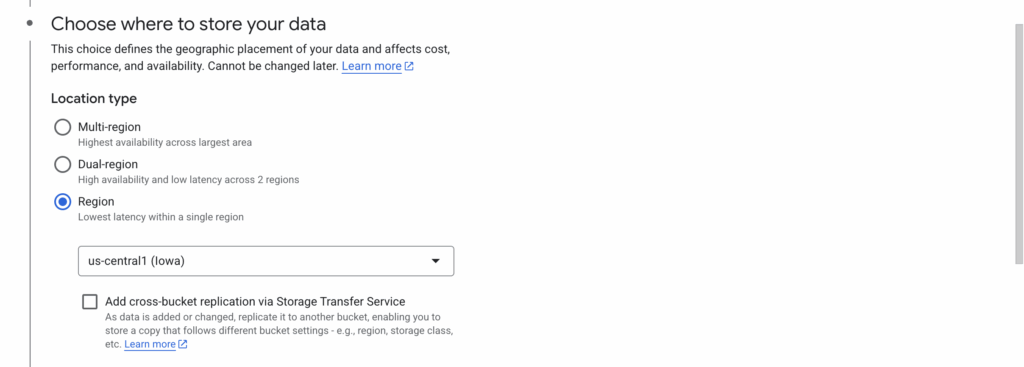
- Enter the bucket name.
- Unselect Soft delete policy (For data recovery) under Choose how to protect object data.
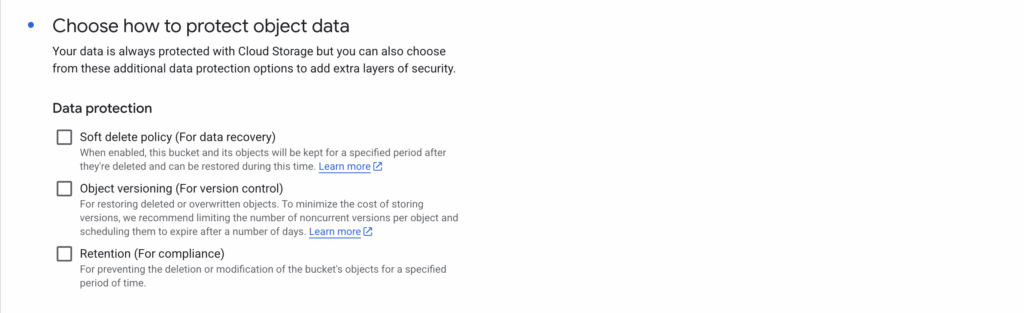
- Proceed ahead and create a bucket
Create a cluster with Tiered storage
On the console, if you want to create a new cluster with Tiered storage enabled, check the Tiered storage option in the Enterprise Add-Ons on the Kafka Setup page (Please contact our support team to enable this feature on AWS for the Public Preview Kafka Tiered Storage versions.)
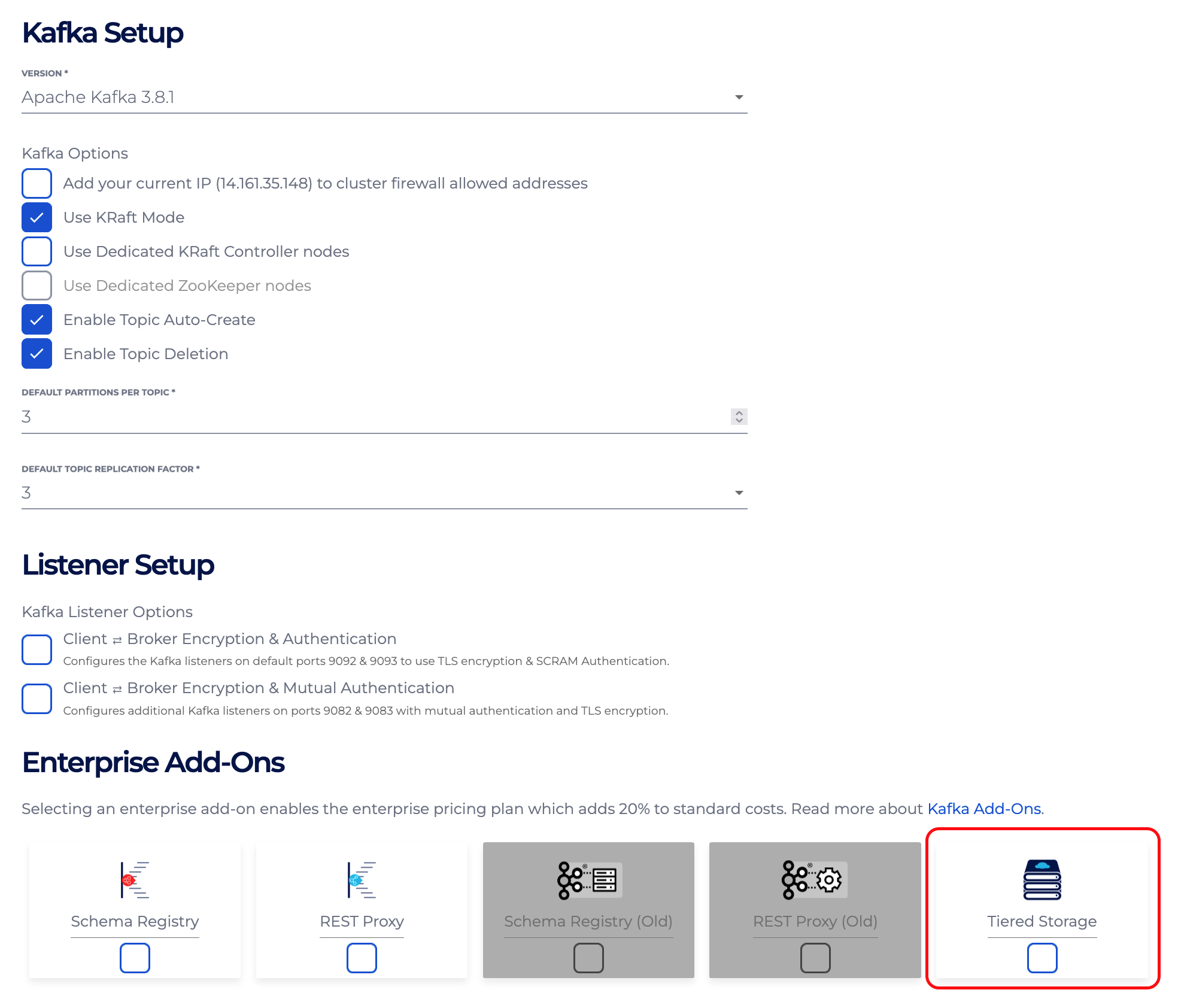 Once this option is checked, it requires S3 or GCS bucket name for remote storage. Make sure bucket exists and meets all the requirements as mentioned in the bucket setup. Enter a valid bucket name and create a cluster.
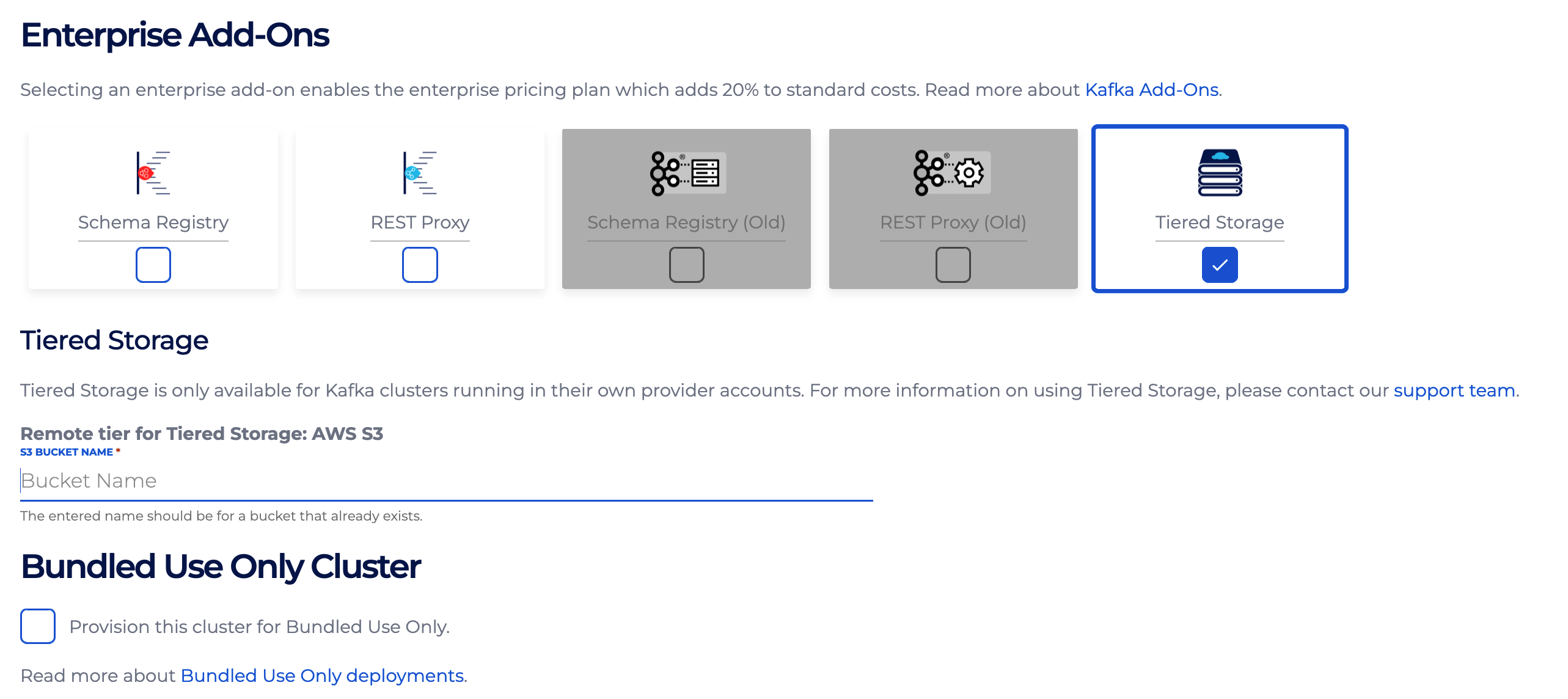
Instaclustr for Apache Kafka cluster with tiered storage can be created via Instaclustr API and via Terraform provider by adding tiered storage details in the request body.
Enabling Tiered storage on existing cluster
To enabled Tiered storage on an existing cluster, please reach out to our support team.
Enabling Tiered Storage on topic level
After enabling Tiered Storage on a cluster level, there are further settings that need to be specified on a topic level, for any topic which needs to be tiered. Most importantly, to ensure Tiered Storage is enabled for a specific topic, set that topic’s config remote.storage.enable to true. If remote.storage.enable=true is not specified then no topic data is copied to remote storage, even if Tiered Storage has been enabled. Next, you need to consider what the duration is for which logs should be retained in local storage before being deleted. This is controlled using a pair of configs for local and total retention:
- local.retention.ms
- retention.ms
- local.retention.bytes
- retention.bytes
Those prefixed with “local” dictate the allowed maximum duration/size for the local log segment before being deleted. If these are not specified, the default values are used resulting in the local and remote storage being retained for the same time (1 week by default). Local log segments are copied to remote storage as soon as possible, but consumers will read from local segments until they are deleted, and then from remote segments. Typically you would want the local time to be a lot shorter than remote time. For more broker and topic configurations, refer to Apache Kafka documentation here.
Validate Tiered Storage Configurations through Console
Note: This section is not required for enabling Tiered Storage. It is intended to help you verify that your Tiered Storage configuration is set up correctly. At this stage, this verification process applies to AWS clusters only.
For clusters that meet the prerequisites, a Tiered Storage tab is available in the left navigation sidebar. From there, you can check both cluster-level and topic-level configurations to confirm that Tiered Storage has been properly enabled and remote storage is accessible.
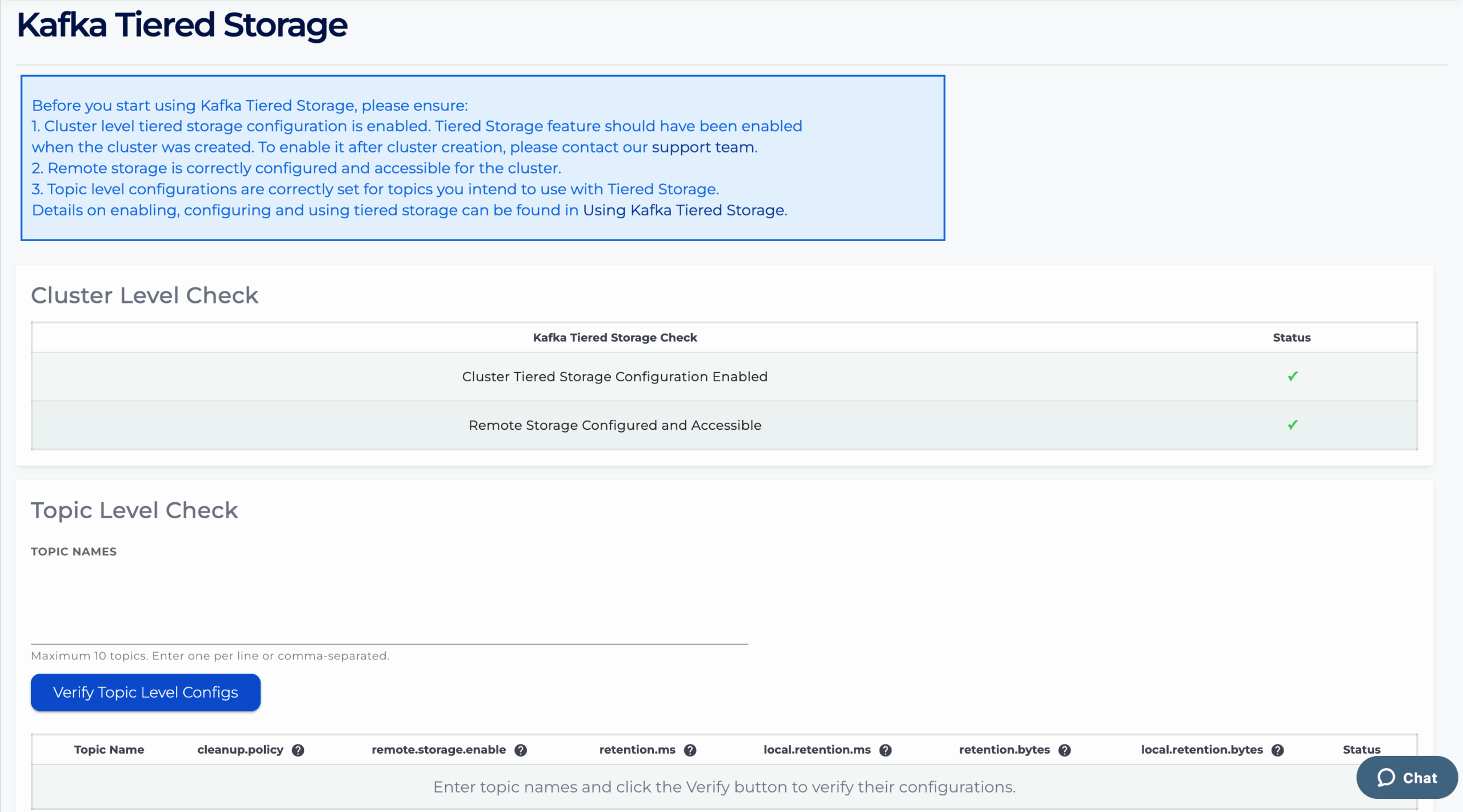
The maximum number of topics that can be validated at one time is 10. Enter one topic name per line, or separate multiple topic names with commas.

If the Tiered Storage-related configurations are correctly set for the topic, a green check mark will appear under Status (for example, topic-test-1 in the table above).
If the configuration is invalid, the corresponding error message will be displayed under Status. In the example above:
- topic-test does not exist on the cluster.
- topic-test-2 shows multiple validation errors:
- compacted topics are not supported by Tiered Storage (cleanup.policy = compact)
- remote.storage.enable is set to false, and
- retention.bytes cannot be 0 or smaller than local.retention.bytes.
Questions
Please contact [email protected] for any further inquiries.