Self-Service Tag Management
Instaclustr Custom Tags
This article describes how to manage Instaclustr Custom Tags using Instaclustr Cluster Management API, Terraform Provider and Instaclustr Console.
Instaclustr Custom Tags are metadata labels that allow you to identify, categorize and filter Instaclustr-managed resources. This can be useful for grouping together clusters into applications, environments, or any category that you require.
Tags can be added to Run in Instaclustr Account (RIIA) clusters during the cluster creation phase but cannot be modified or removed afterwards. However, for Run in Your Own Account (RIYOA) clusters, tags can be created, updated, or deleted at any time.
The tags created on RIYOA clusters are automatically projected out onto cloud resources in your own cloud provider account. This enables these tags to be searched and sorted using the cloud provider’s respective console interface. This consistency across all methods of interacting with clusters is beneficial.

By managing tags through the Cluster Management API, Terraform Provider or Instaclustr Console rather than through external automation, you can ensure that the tags are automatically applied to Instacluster-managed resources such as newly added node and replacement nodes.
Tags are managed at the granularity of data centre level, which means you can have different tags for different data centres. You can also add account level or cluster level tags for new clusters, but you cannot manage tags at the node level, which means you cannot have different tags for different nodes in the same data centre.
Key points to remember about Instaclustr Custom Tags
- Only Owners and Admins have permission to create, update and delete tags.
- Custom tags are available to customers with the RIYOA deployment model.
- Tags are managed at the data centre level.
Tag Restrictions
Tag keys and values are both case sensitive. Please refer to AWS, GCP and AZURE for more information on cloud provider requirements such as maximum length and naming restrictions.
If you are using Prometheus, you should note that Prometheus does not handle special characters. They are instead replaced by “_”.
Following are the maximum numbers of Instaclustr Custom Tags that can be set on our platform for each cloud provider.
- AWS: up to 35 tags
- Azure: up to 35 tags
- GCP: up to 49 tags
Note: Instaclustr Custom Tags on GCP utilize the GCP label system.
Enablement of Tag Management
Tag Management is disabled by default for existing clusters to reduce the risk of accidental deleting existing tags. For new clusters and data centres created after this feature’s release on the 8th of December 2025, Tag Management is enabled by default. Namely, you can start managing tags for new clusters and newly added data centres without worrying about explicitly enabling Tag Management for them.
The enablement of Tag Management allows you to create, update or delete tags for running clusters via Instaclustr Console, Terraform Provider and Cluster Management API PUT endpoints for updating clusters. Note that the Cluster Management API PATCH endpoint for managing custom tags is not affected by this, and customers can use the PATCH endpoint even when Tag Management is disabled. However, managing a data centre’s tags using multiple approaches is not recommended, as it may cause Terraform state inconsistencies or result in outdated PUT API payloads.
We provide a data centre level property tag_management_enabled to indicate if Tag Management is enabled for a data centre. This property is optional and can be omitted in the PUT API payloads and Terraform configurations if you do not wish to toggle Tag Management. You can follow one of the steps below to verify its enablement.
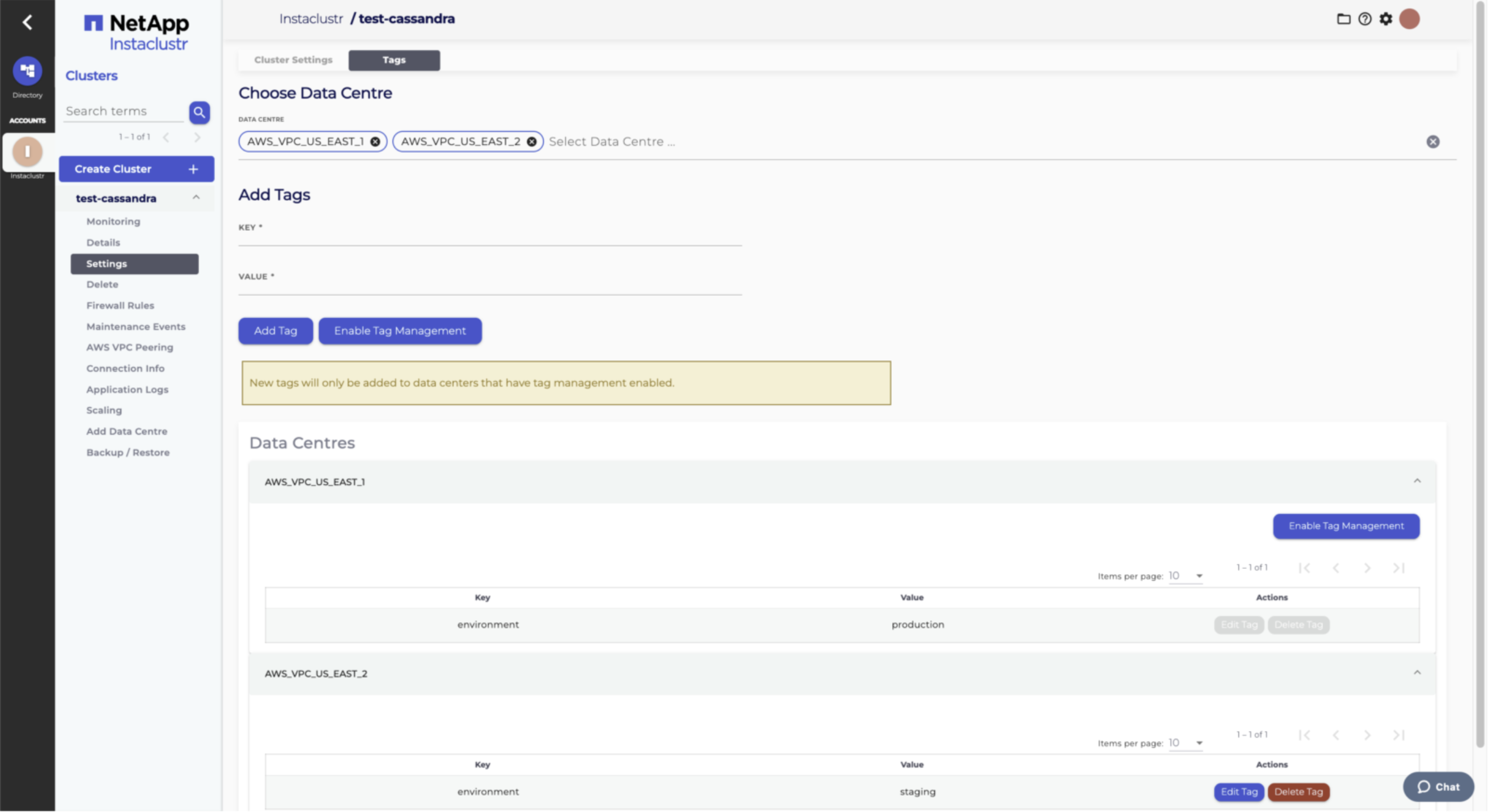
- In Instaclustr Console, select a cluster -> go to its Settings -> go to the Tags tab. Check if there is a blue “Enable Tag Management” button for a data centre. Tag Management is disabled for the data centre if it has this button.
- Set
tag_management_enabled = true in the Terraform configuration (e.g., Terraform configuration for Cassandra). Runterraform plan and verify if there is any attempted change to set this property to true. If there is attempted change, then Tag Management is currently disabled. - Download Terraform resources through Instaclustr Console and confirm if the property
tag_management_enabled istrue for a data centre. - Send a GET request (e.g., Get Cassandra Cluster Details) to Cluster Management API to retrieve cluster details and confirm if the property
tagManagementEnabled istrue for a data centre.
Refer to the sections below for steps to enable Tag Management in different ways.
Managing Tags via Instaclustr Console
Setting Account Level Tags
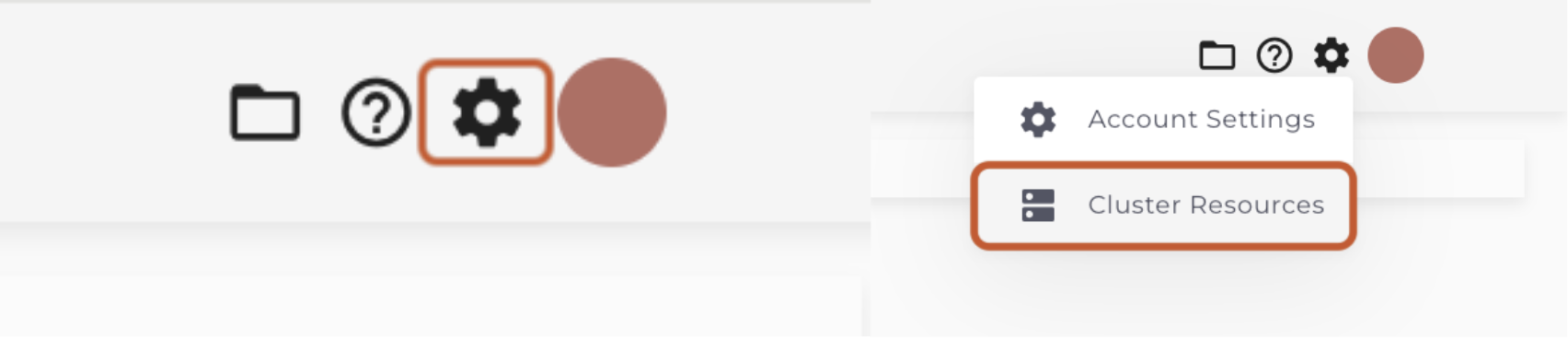
- To get started, click the gear icon at the top right-hand corner of Instaclustr Console. This will show a dropdown menu from which you should select the Cluster Resources option.
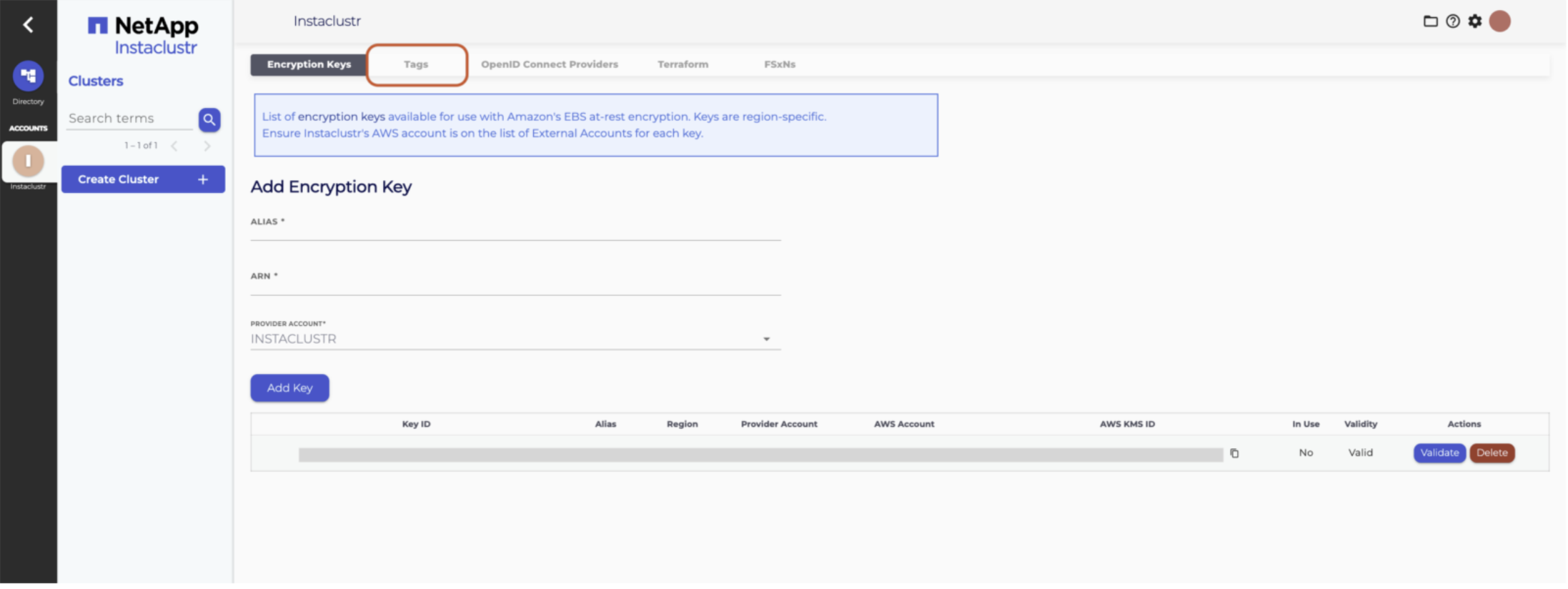
- Select the Tags tab. This will take you to a page from which you can define the tags that you would like to add to the clusters which will be created in this account.
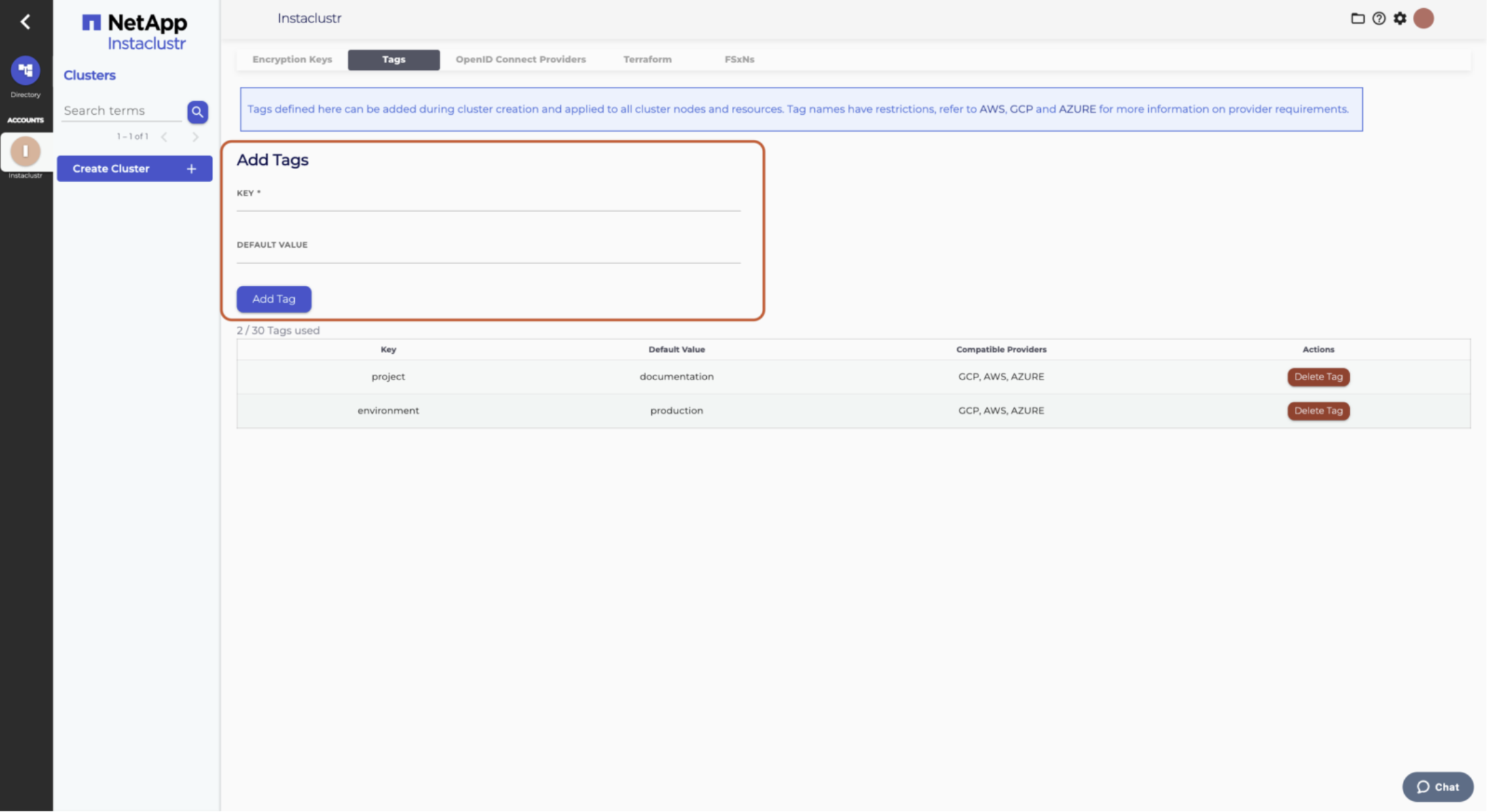
- Create a tag on this page by entering the necessary data into the input fields. Each tag consists of a key and a value. The values you set on this page will be the default options for when a cluster is created.
Adding Cluster Level Tags During Cluster Creation
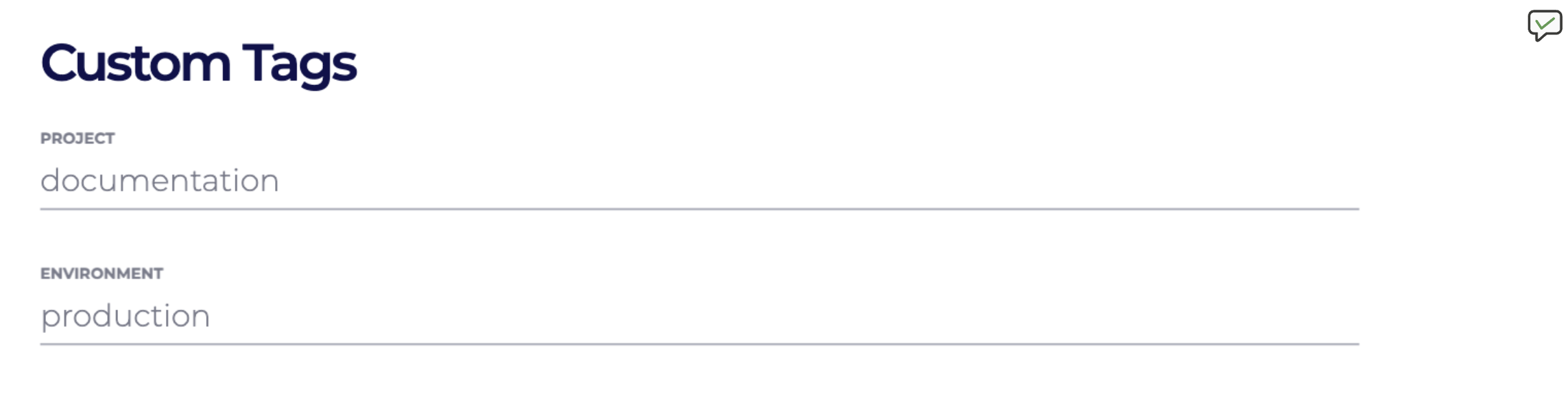
During the process of cluster creation, or adding a new CDC or node, any tags set at the account level will automatically be set. On the third page of options when creating a cluster, you can also override any default tags for that specific cluster within the Custom Tags section. Note that adding tags during cluster creation is not affected by the enablement of Tag Management.
Enabling Tag Management for Existing Clusters
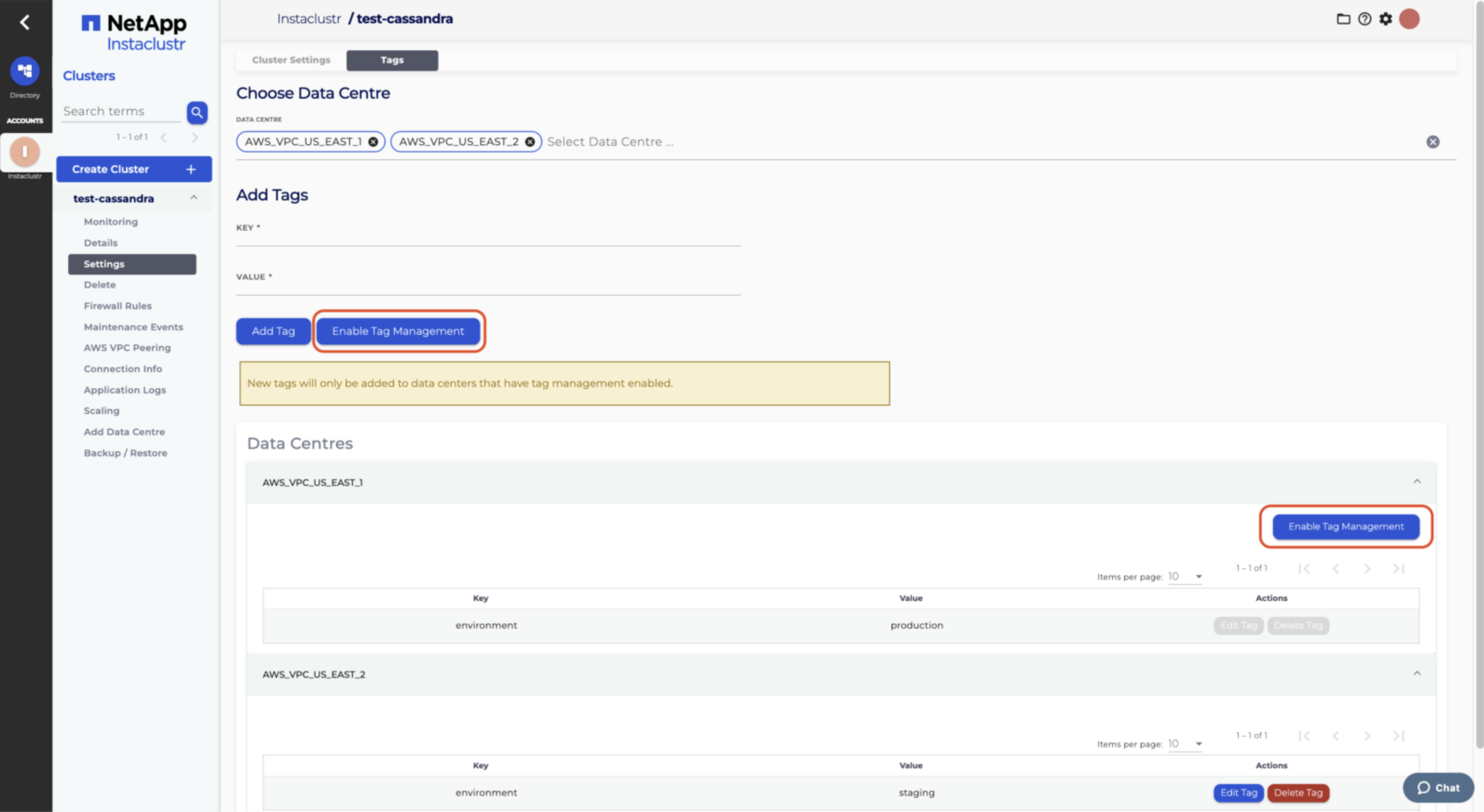
In Instaclustr Console, select a cluster -> go to its Settings -> go to the Tags tab.
- Click the Enable Tag Management button below the Add Tags section if you want to enable Tag Management for multiple data centres.
- Click the Enable Tag Management button in each data centre’s section to enable it only for the individual data centre.
Creating Tags for Running Clusters
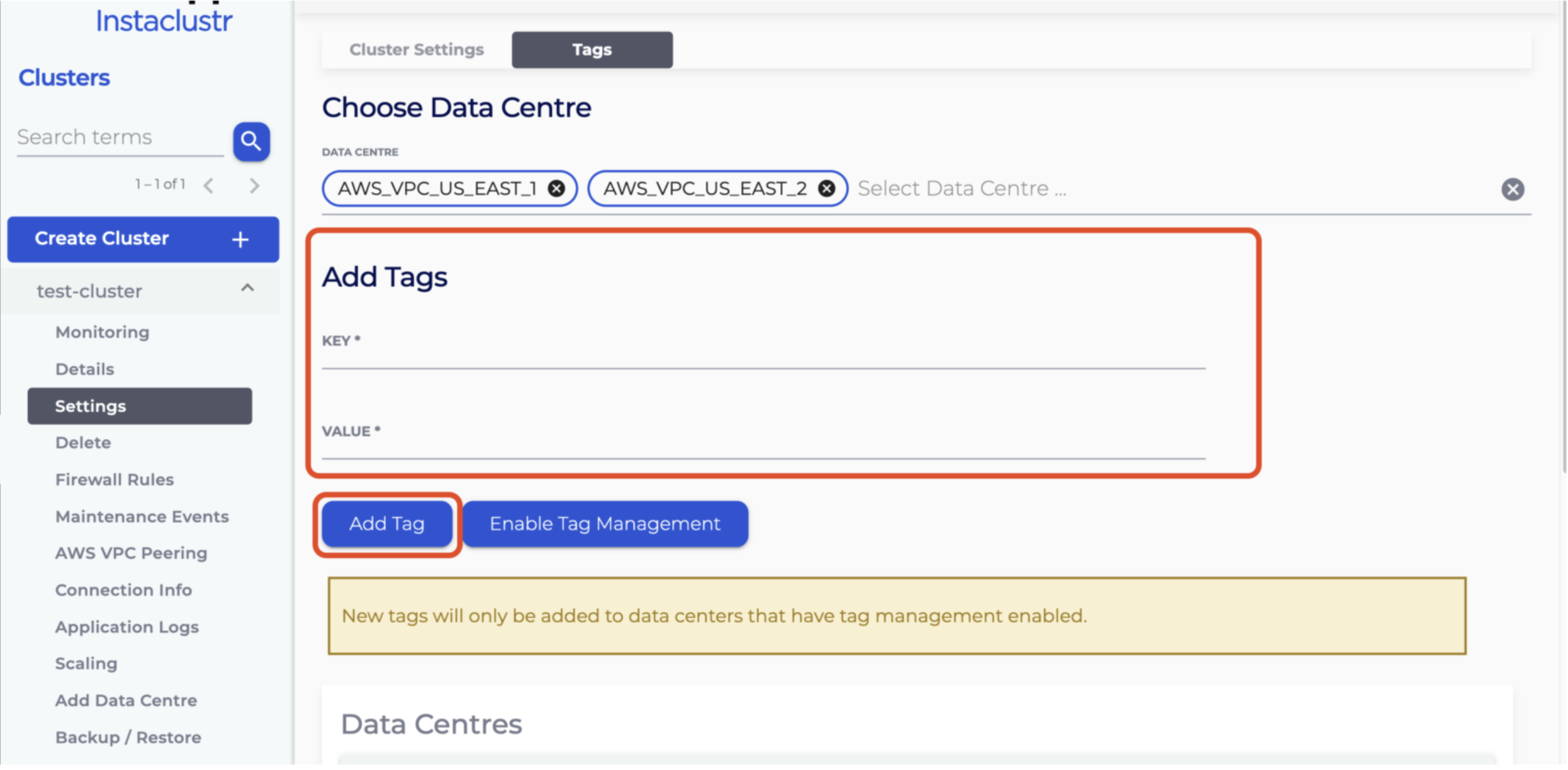
In Instaclustr Console, select a cluster -> go to its Settings -> go to the Tags tab.
- Enter the tag key and value in the Add Tags section.
- Click the Add Tag button to create the tag.
Updating Tags for Running Clusters
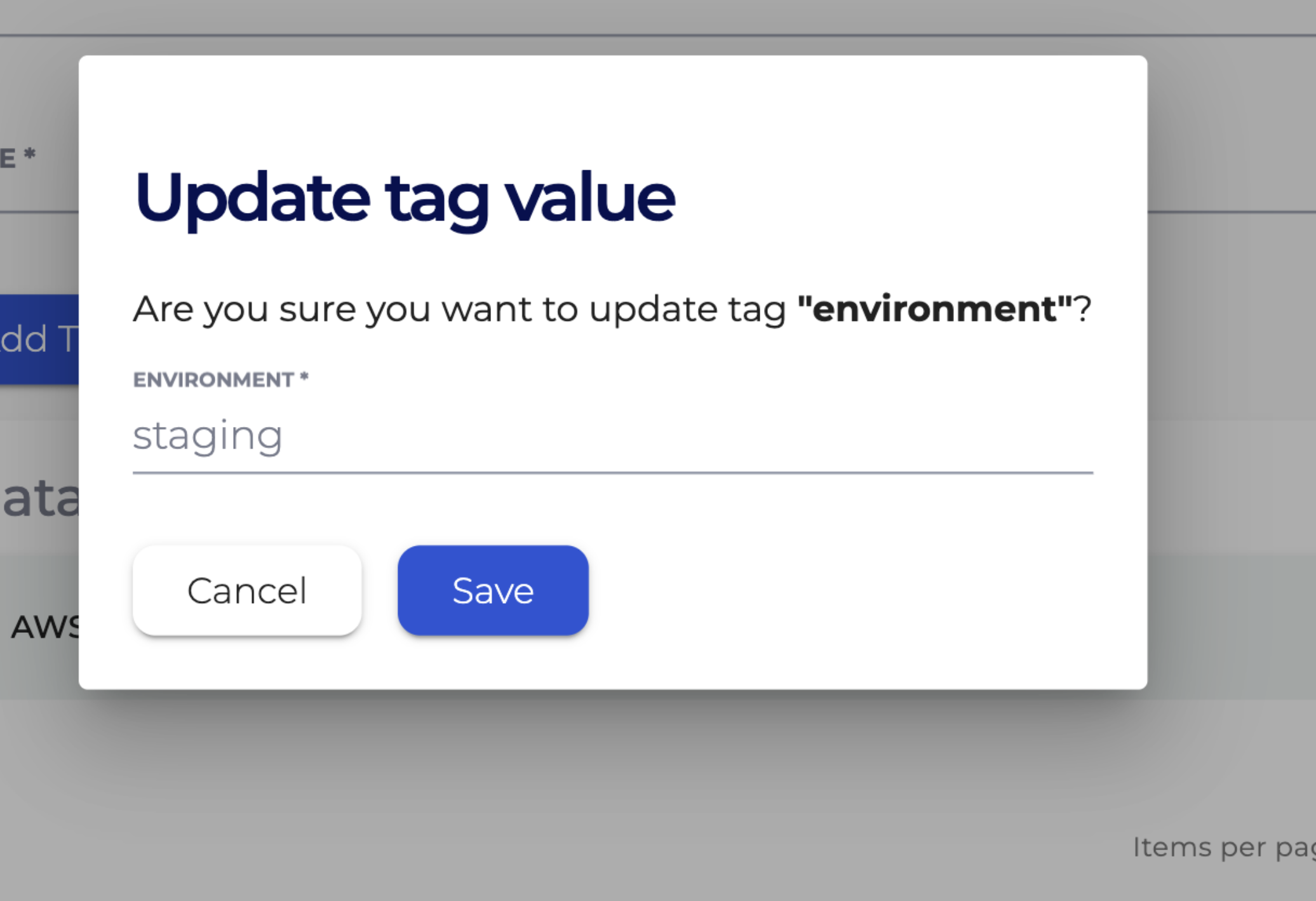
In Instaclustr Console, select a cluster -> go to its Settings -> go to the Tags tab.
- Click the Edit Tag button to update a tag’s value.

- Then confirm the change.
Deleting Tags for Running Clusters
In Instaclustr Console, select a cluster -> go to its Settings -> go to the Tags tab.
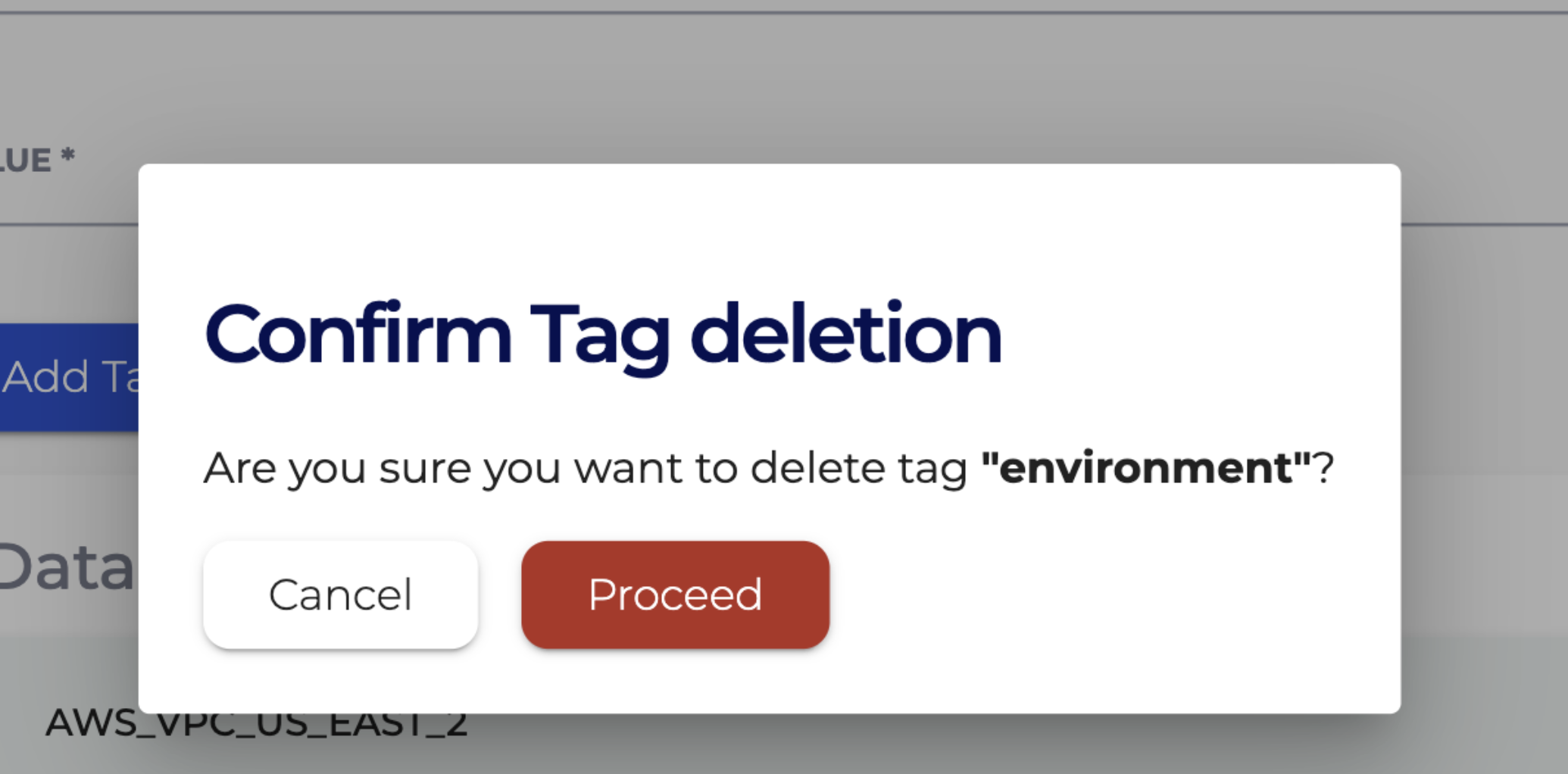
- Click the Delete Tag button to delete a tag.
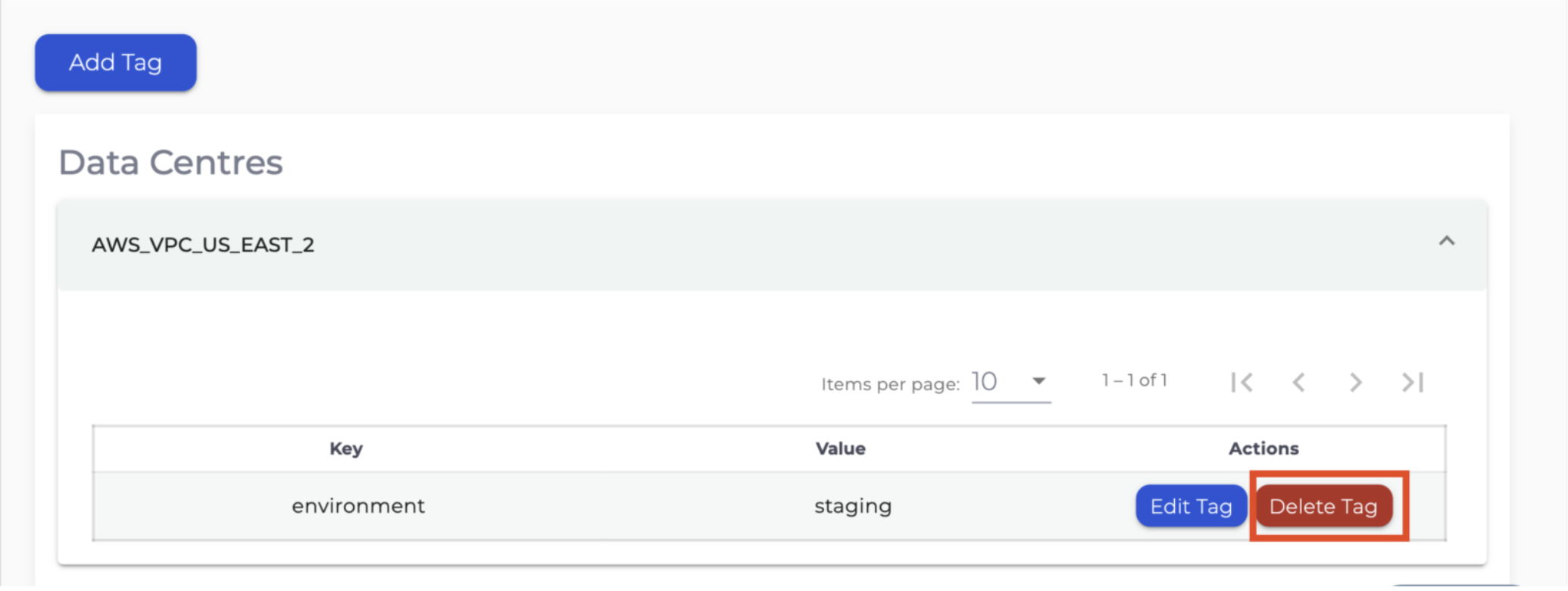
- Then confirm the change.
Managing Tags via Terraform Provider
Adding Tags During Cluster Creation
Add tags that you want to create for each data centre to the Terraform configuration (e.g., tag property in the data centre configuration for Cassandra). Run terraform plan to verify the changes and run terraform apply to create the cluster with the supplied tags. Note that adding tags during cluster creation is not affected by the enablement of Tag Management.
Enabling Tag Management for Existing Clusters
We recommend the following steps to enable Tag Management for existing clusters using Terraform Provider.
- Set
tag_management_enabled = true in the data centre configuration (e.g., Terraform configuration for Cassandra). - Run
- Run
terraform apply to perform the change. - Run
terraform plan again and confirm there is no more attempted change to this property, which means Tag Management is now enabled. - Remove the optional
tag_management_enabled property from the data centre configurations once it’s confirmed enabled.
Creating, Updating and Deleting Tags for Running Clusters
Include all the expected tags that you want to keep, create, update or delete for each data centre in the Terraform configuration (e.g., tag property in the data centre configuration for Cassandra). Make sure to double check the attempted changes displayed by terraform plan before applying them by terraform apply.
- All existing tags that you want to keep must be included to avoid unintentional deletion. Download Terraform resources through Instaclustr Console to retrieve all the existing tags and supply them in the data centre configurations.
- Add new tags to the data centre configuration to create them for the corresponding data centre.
- Include the existing tag key and supply a new tag value for each tag that you want to update in the data centre configuration to update their values.
- Exclude an existing tag from the data centre configuration to delete the tag.
- Do not supply any tags in the data centre configuration to delete all existing tags for the data centre.
Managing Tags via Cluster Management API
Adding Tags During Cluster Creation via POST API
Add tags that you want to create for each data centre to the POST payload (e.g., tags property in the POST payload for creating a Cassandra cluster). Send the POST request to create the cluster with the supplied tags. Note that adding tags during cluster creation is not affected by the enablement of Tag Management.
Enabling Tag Management for Existing Clusters
We recommend the following steps to enable Tag Management for existing clusters using Cluster Management API PUT endpoints (e.g., PUT /cluster-management/v2/resources/applications/cassandra/clusters/v2/{clusterId}).
- Set
"tagManagementEnabled": true in thedataCentres blocks in the PUT payload (e.g., Update Cassandra Cluster Details). - Send the PUT request to enable tag management.
- Send a GET request again and verify the property
tagManagementEnabled istrue. - Remove the optional
tagManagementEnabled property from the PUT payload once it’s confirmed enabled.
Creating, Updating and Deleting Tags via PUT API
Include all the expected tags that you want to keep, create, update or delete for each data centre in the PUT payload (e.g., tags property in the PUT payload). Since the tag management via PUT API is asynchronous, you will need to check the result by querying the GET API (e.g., GET Cassandra cluster details).
- All existing tags that you want to keep must be included to avoid unintentional deletion. Send a GET request to retrieve all the existing tags and supply them in the PUT payload.
- Add new tags to the PUT payload to create them for the corresponding data centre.
- Include the existing tag key and supply a new tag value for each tag that you want to update in the PUT payload to update their values.
- Exclude an existing tag from the tags property in the PUT payload to delete the tag.
- Set the tags property to an empty list (i.e.,
"tags": []) to delete all existing tags for the data centre. - Query the GET API until
currentClusterOperationStatus transitions fromOPERATION_IN_PROGRESS toNO_OPERATION. Then check the tags for each data centre to confirm if they match the expected changes.
Creating, Updating and Deleting Tags via PATCH API
We also provide a PATCH endpoint PATCH /cluster-management/v2/operations/clusters/v2/{clusterId}/tags/v2 for managing tags for all data centres in a cluster using the JSON Merge Patch format. Note that this PATCH API is not affected by enablement of Tag Management, and you can continue using this PATCH API without worrying about enabling Tag Management.
- Create/Update Tags: Setting a tag value to a non-null string will either create the tag if it does not exist or update it if it does. If the tag already exists with the same value, no changes will be made.
- Delete Tags: Setting a tag value to null will delete the tag if it exists. If the tag does not exist, setting its value to null will be a no-op.
- No Change: Any tag that already exists but is not supplied in the request will remain unchanged.
Key Points & Recommendations
- Always fetch and review existing tags before making updates.
- Ensure all existing tags are included in Cluster Management API payloads and Terraform configurations to prevent accidental deletion.
- Double-check Terraform plan output before applying changes.
- If using PUT API for managing tags, query GET API to check the status of tag management operations and the resulting tags.
- Be mindful of potential Terraform state drifts or outdated PUT payloads when you use multiple methods to manage tags. For example, if you use both PATCH and PUT API to manage tags, make sure that all the tags created using PATCH API are also included in the PUT API payload to avoid accidental deletion.