AWS FSx for NetApp ONTAP Integration: Instaclustr-Managed FSx
This guide provides instructions for both NetApp Instaclustr managed ClickHouse and FSx for ONTAP. The AWS-side configuration of FSx for ONTAP is performed via NetApp Instaclustr Console, API or Terraform.
The fully managed NetApp Instaclustr-managed ClickHouse solution reduces the amount of AWS‑side configuration you need to perform, as the FSx for ONTAP file system lifecycle, provisioning, and connectivity are handled through the NetApp Instaclustr platform
Alternatively, if you already have an FSx for ONTAP file system that you manage in your own AWS account, refer to the Self-managed FSx for ONTAP guide instead.
Overview
Follow this guide to provision and manage the Amazon FSx for ONTAP file system and seamlessly integrate it with your NetApp Instaclustr-managed ClickHouse cluster.
At the end of this process, your NetApp Instaclustr-managed ClickHouse cluster will have an active FSx for ONTAP integration and a Named Collection that can be used with the ClickHouse S3 table engine and S3 table functions to query your data.
Click here to learn more about AWS FSx for NetApp ONTAP integration, including how to use it for accessing file system data through NetApp Instaclustr-managed ClickHouse.
Before, proceeding, please note the following:
Limitations
- If you create an FSx for ONTAP file system through the Instaclustr platform, you must delete the FSx for ONTAP file system before deleting the associated NetApp Instaclustr managed ClickHouse cluster.
- Ensure that each NetApp Instaclustr-managed ClickHouse cluster and FSx for ONTAPfile system uses a unique CIDR range. The CIDR ranges must not overlap.
Prerequisites
- The NetApp Instaclustr-managed ClickHouse cluster is provisioned in an AWS RIYOA provider account.
How to Enable FSx for ONTAP Integration
Once you have provisioned a compatible NetApp Instaclustr managed ClickHouse cluster, the following steps explain how to integrate the cluster with FSx for ONTAP, using either the NetApp Instaclustr Console, API, or Terraform provider.
Using the NetApp Instaclustr Console to enable FSx for ONTAP integration
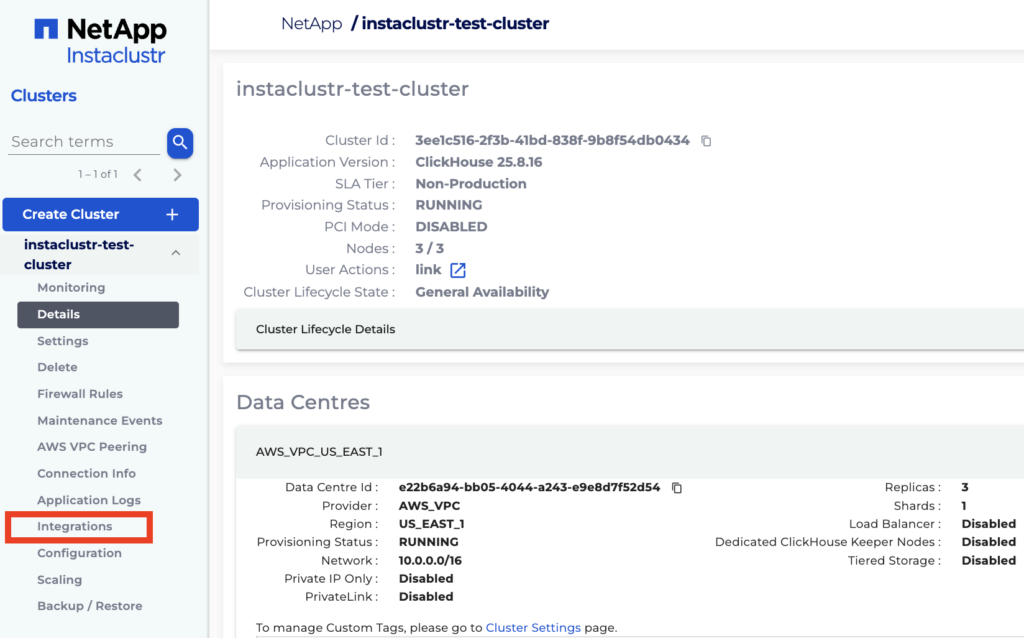
- In Console, expand the NetApp Instaclustr-managed ClickHouse cluster options on the sidebar and select the Integrations tab.
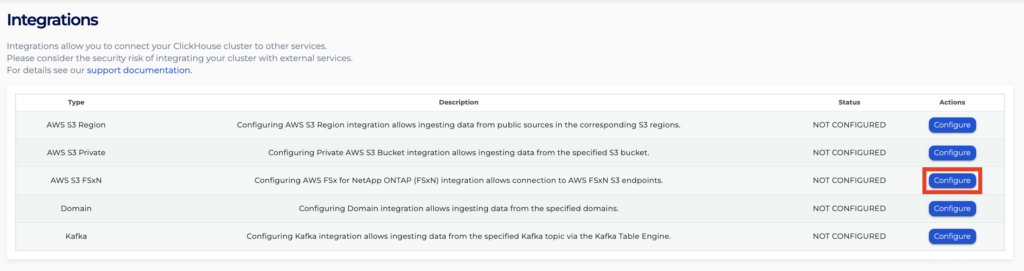
- Click Configure for the row with type AWS S3 FSxN.
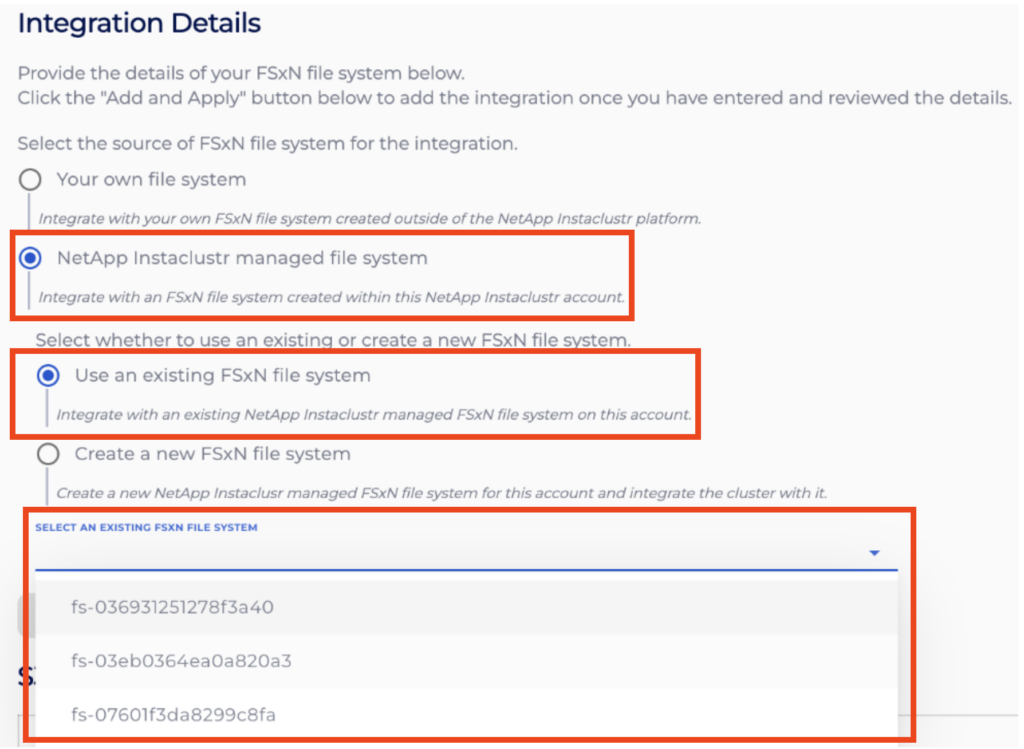
- On the Configure AWS S3 FSx for ONTAP Integration page, you will need to enable the source of the FSx file system by selecting the relevant check box. This will identify whether the source will be for an existing FSx file system or whether a new FSx file system source needs to be created.
- Option 1: Use an existing FSx file system for the source of the integration:Choose this option if you already have an FSx for ONTAP file system that was created through the Instaclustr platform. Select the file system you want to use from the dropdown list, and it will be integrated with your cluster.
- Option 2: Create a new FSx file system for the source of the integration:Choose this option if you would like to create and manage a newly provisioned NetApp Instaclustr-managed FSx for ONTAP file system. Once created, your NetApp Instaclustr-managed ClickHouse cluster will be automatically integrated with the new NetApp Instaclustr-managed FSx for ONTAP file system.
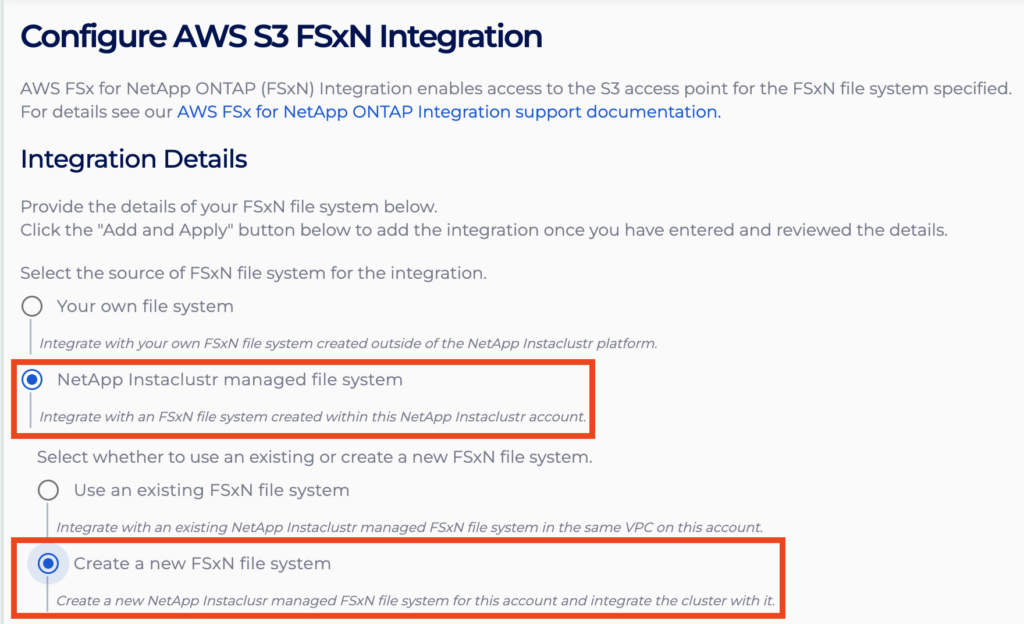
Note: If you create an FSx for ONTAP file system using this option, you’ll need to delete the file system before you can delete the associated NetApp Instaclustr-managed ClickHouse cluster. For guidance on removing a NetApp Instaclustr-managed FSx for ONTAP file system, see the How to Manage Instaclustr-Created FSx for ONTAP File Systems section below.
- Option 1: Use an existing FSx file system for the source of the integration:Choose this option if you already have an FSx for ONTAP file system that was created through the Instaclustr platform. Select the file system you want to use from the dropdown list, and it will be integrated with your cluster.
- Once you have ensured that all details are correct, click Add and Apply to apply the integration and return to the previous Integrations page. Clicking Cancel will return to the Integrations page while discarding the integration.
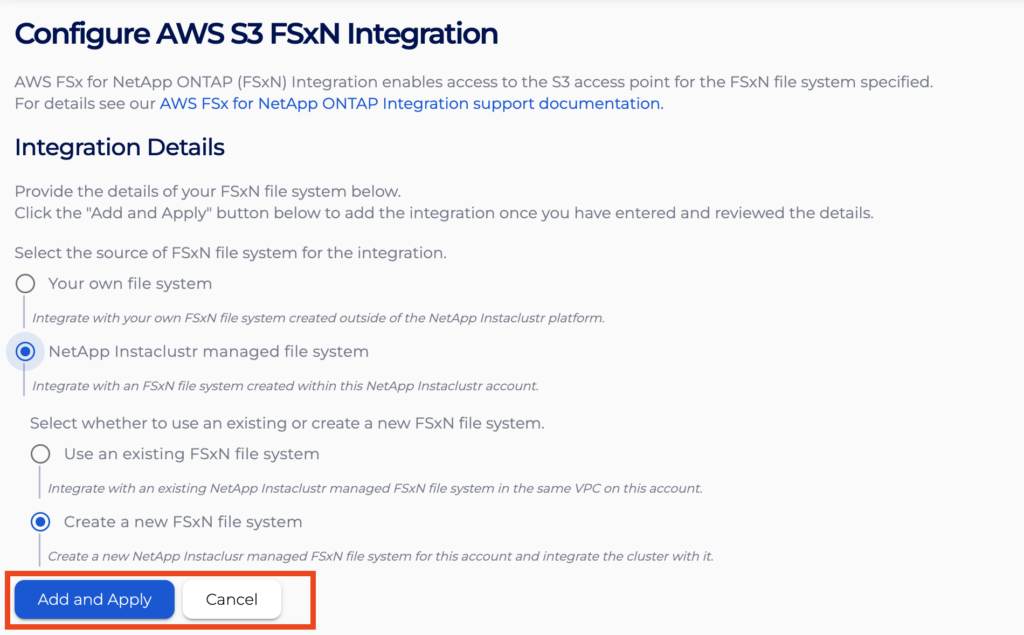
- After returning to the Integrations page, the status for the AWS S3 FSx integration row will indicate that your integration is being processed, and you will be momentarily blocked from accessing the page.
- After processing has finished, you will be allowed to re-enter the page.

- If you return to the FSx for ONTAP integration page, you will see all your integrations listed in the S3 FSx Integrations table, with their statuses indicated by the Status field. Clicking Delete for an integration will cause it to be deleted from the cluster.

Note: If an integration shows a FAILED status, try deleting it and adding it again, making sure all details are entered correctly. If this still does not seem to resolve the issue, contact NetApp Instaclustr Support for assistance.
Using the NetApp Instaclustr API to Enable FSx for ONTAP Integration
You can create, view and remove your FSx for ONTAP integrations using the NetApp Instaclustr API. An example payload for the POST endpoint is provided below.
Please refer to the endpoint documentation page for further details on all configurable parameters.
|
1 |
POST https://api.instaclustr.com/cluster-management/v2/resources/applications/clickhouse/clusters/v2 |
- If you wish to create a new file system with which to integrate:
123{clusterId: '<CLUSTER ID>'}
Note: If you create a file system this way, you will not be able to delete the associated cluster without first deleting the file system.For guidance on removing an Instaclustr‑managed file system, see the How to View or Delete NetApp Instaclustr-Managed FSx for ONTAP File Systems section below.
- If you wish to integrate with an existing file system:
123456{clusterId: '<CLUSTER ID>',fsxnFilesystem: {fsxnId: '<FSXN ID>'}}
Similarly, to delete an existing FSx for ONTAP file system, use the DELETE endpoint provided below:
|
1 |
DELETE https://api.instaclustr.com/cluster-management/v2/resources/providers/aws/fsxn/v2/<FSXN ID> |
For further details on NetApp Instaclustr API endpoints, refer to the NetApp Instaclustr API documentation.
Using the NetApp Instaclustr Terraform Provider
You can manage your FSx for ONTAP integrations using NetApp Instaclustr Terraform. The steps are as follows:
- Follow this support document to set up your NetApp Instaclustr Terraform Provider V2.
- Populate the resource template below with information about the integration:
- If you wish to create a new file system with which to integrate:
123resource "instaclustr_aws_fsxn_v2" "example_fsxn_p2" {cluster_id = "<CLUSTER ID>"}
Note: If you create a file system this way, you will not be able to delete the associated cluster without first deleting the file system.
- If you wish to integrate with an existing file system (i.e., the instaclustr_aws_fsxn_v2 resource above):
123456resource "instaclustr_clickhouse_integration_s3_fsxn_v2" "example" {fsxn_filesystem {fsxn_id = "<FSXN ID>"}cluster_id = "<CLUSTER ID>"}
- If you wish to create a new file system with which to integrate:
- Follow the Terraform init, plan and apply cycle to provision the cluster.
Refer to the resource documentation page for details on all configurable parameters.
Once your integration has been applied, you can refer to How to Use ClickHouse S3 Table Engine with FSx for ONTAP for guidance on using your integration.
How to View or Delete the NetApp Instaclustr-Managed FSx for ONTAP
The following steps explain how to view and delete the NetApp Instaclustr FSx for ONTAP, using either the NetApp Instaclustr Console, API, or Terraform provider.
Using the NetApp Instaclustr Console
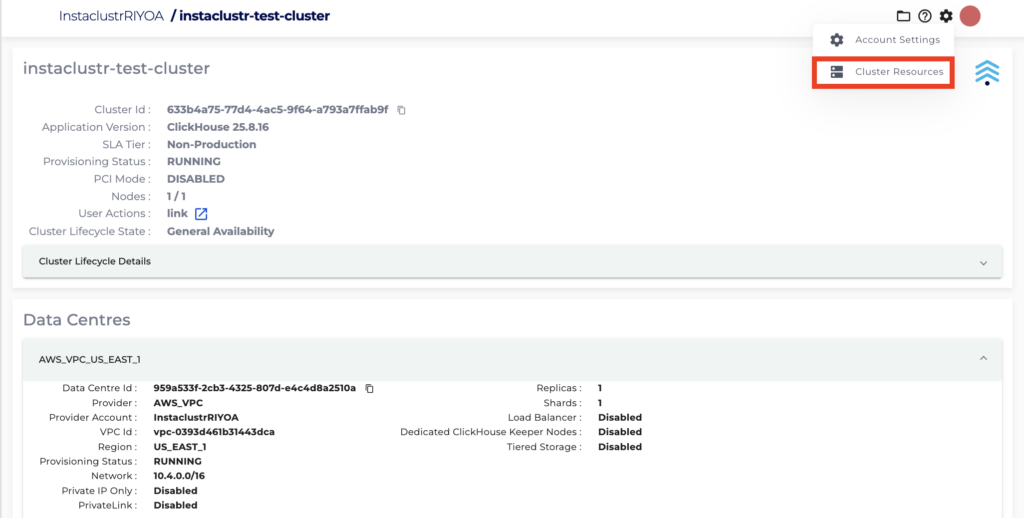
- In Console, click the gear icon in the top-right corner and select Cluster Resources.
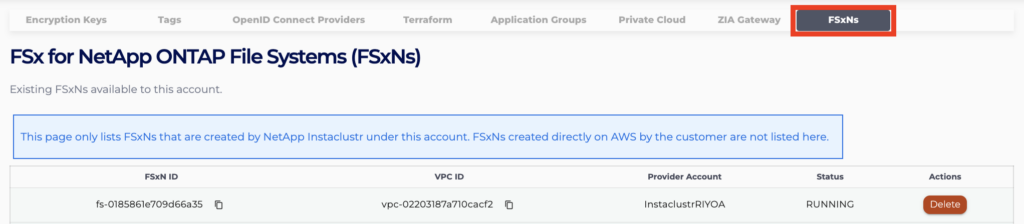
- Select the FSx for ONTAPs tab to view information for your file systems, including the AWS account and VPC it is provisioned in, as well as its provisioning status.
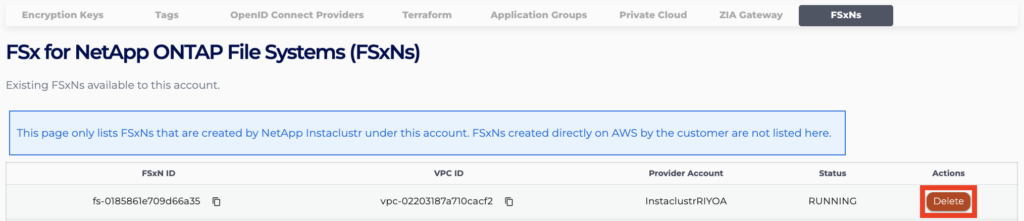
- To delete an existing file system, click the Delete button for that file system. Note that you cannot delete a file system that is currently integrated with a NetApp Instaclustr managed ClickHouse cluster.
Using the NetApp Instaclustr API
You can manage FSx for ONTAP file systems within your account using the NetApp Instaclustr API. An example payload for the POST endpoint is provided below.
Please refer to the endpoint documentation page for further details on all configurable parameters.
|
1 2 3 4 5 |
POST https://api.instaclustr.com/cluster-management/v2/resources/applications/clickhouse/clusters/v2 { clusterId: '<CLUSTER ID>' } |
For further details on NetApp Instaclustr API endpoints, refer to the NetApp Instaclustr API documentation.
Using the NetApp Instaclustr Terraform Provider
You can manage file systems within your account using NetApp Instaclustr Terraform. The steps are as follows:
- Follow this support document to set up your Instaclustr Terraform Provider V2.
- Follow the resource template below for guidance on cluster details required for integration with FSx for ONTAP. Refer to the resource documentation page for details on all configurable parameters.
123resource "instaclustr_aws_fsxn_v2" "example" {cluster_id = "<CLUSTER ID>"} - Follow the Terraform init, plan and apply cycle to provision the FSx for ONTAP file system.
For further details on NetApp Instaclustr Terraform resources, refer to the NetApp Instaclustr Terraform documentation.
Questions
Please contact NetApp Instaclustr Support for any further inquiries.