Creating a GCP Private Service Connect enabled Apache Cassandra cluster on the Instaclustr platform
This article describes how to provision an Apache Cassandra® cluster with GCP Private Service Connect using the Instaclustr Console. Private Service Connect (PSC) is a feature provided by Google Cloud Provider that enables private connectivity between Google Cloud services and applications in your Virtual Private Cloud (VPC). By using PSC, you can establish a private data flow between Google Cloud services and your own VPC without exposing your data to the public internet, thereby increasing security. More information from GCP about PSC is available here.
Prerequisites and limitations
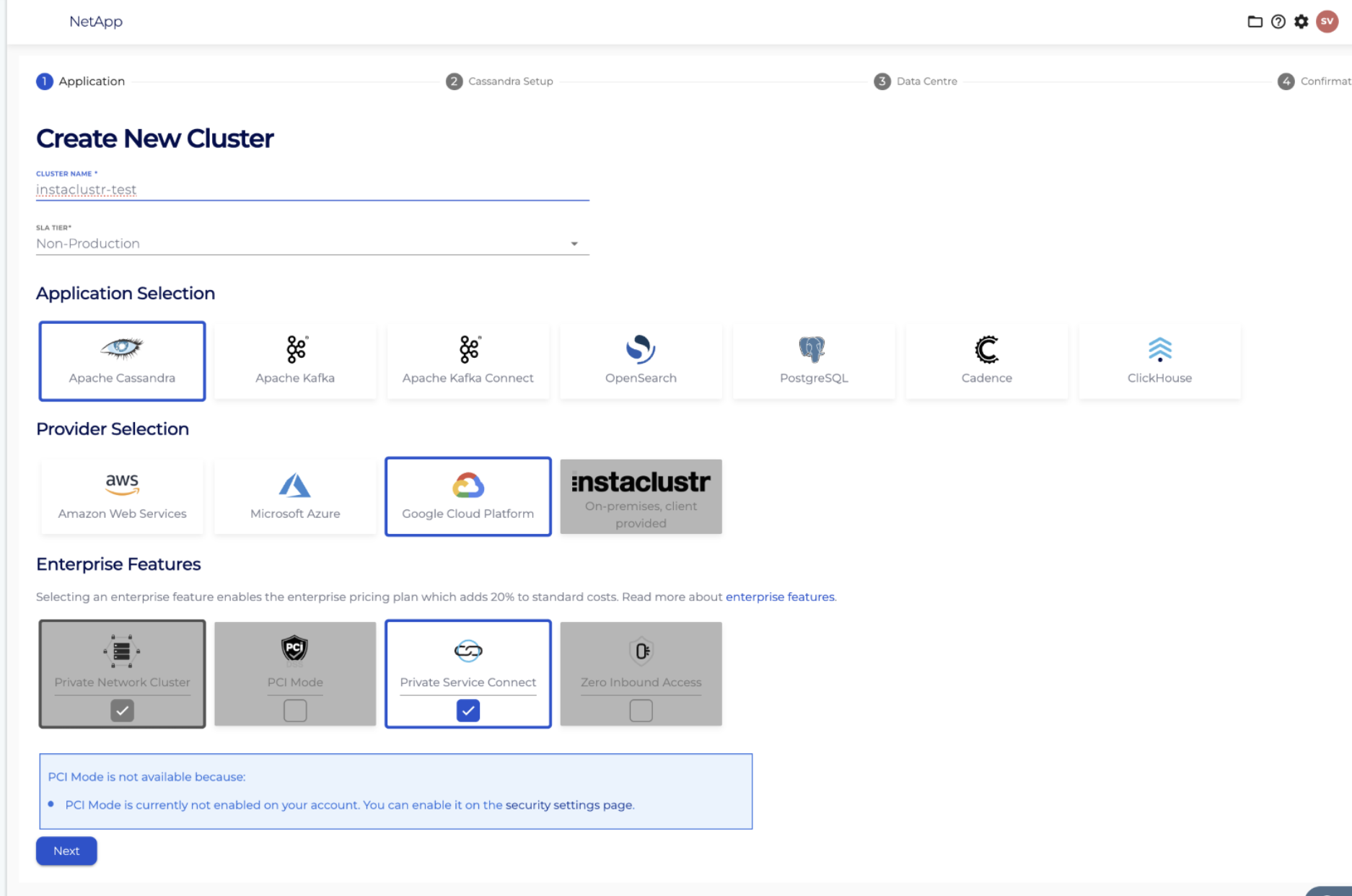
- Private network: A private network cluster is required when using Private Service Connect; the Console enforces this when PSC is selected.
- Cassandra version: Private Service Connect with Shotover is supported only on supported Cassandra major versions published in your compatibility and lifecycle documentation (for example Cassandra 4.0). Confirm the exact floor in Lifecycle status of application versions.
- Provisioning vs connectivity: Cluster creation provisions Instaclustr-managed infrastructure and PSC-related metadata. Consumer PSC endpoints, routing, and advertised addresses used by clients are configured after provisioning.
Provision a Cassandra GCP Private Service Connect enabled cluster on the Instaclustr platform
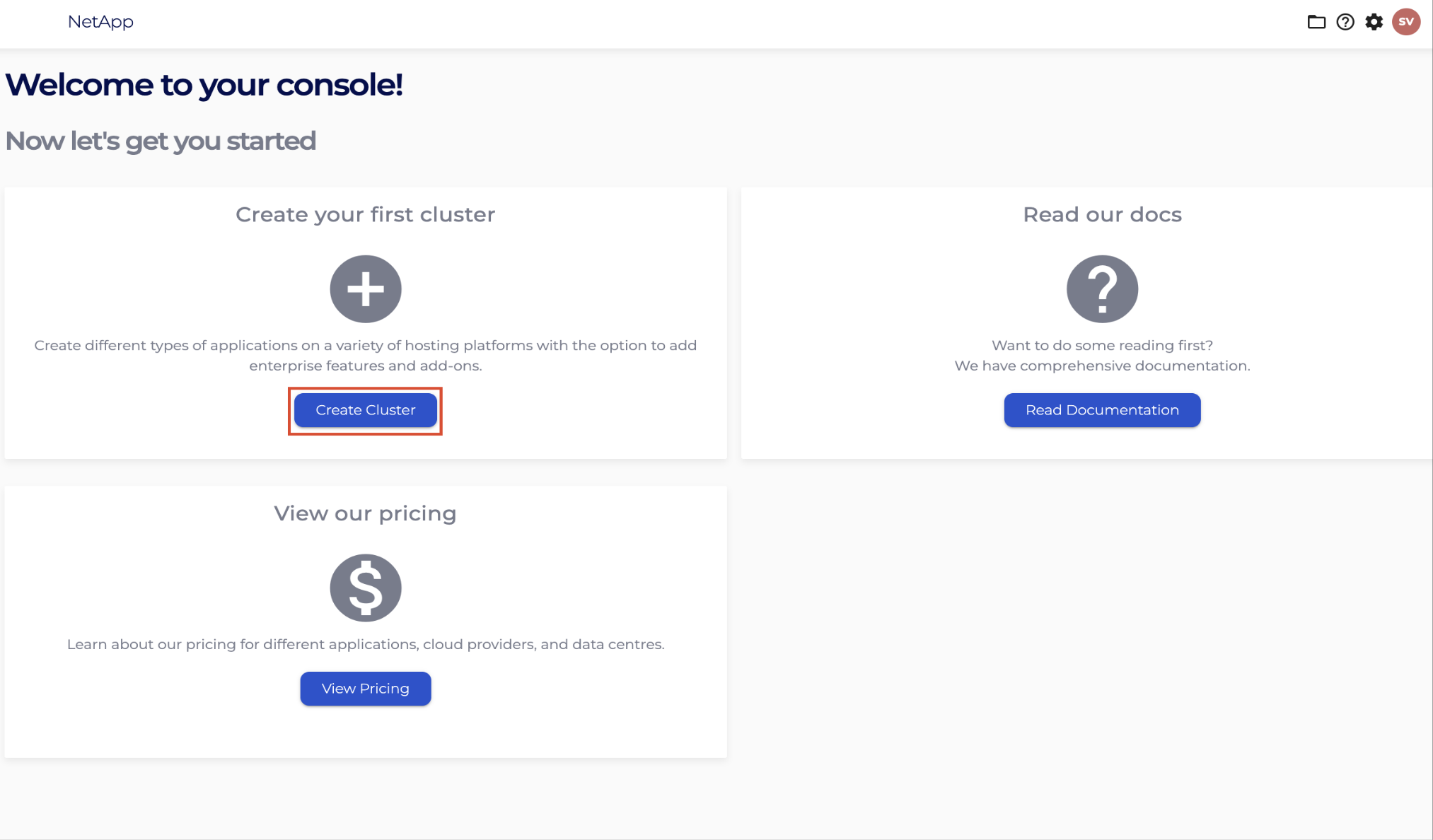
1. Log into the console and click the Create Cluster button.
2. Provision a Cassandra cluster and ensure you select the GCP Private Service Connect Enterprise Feature.
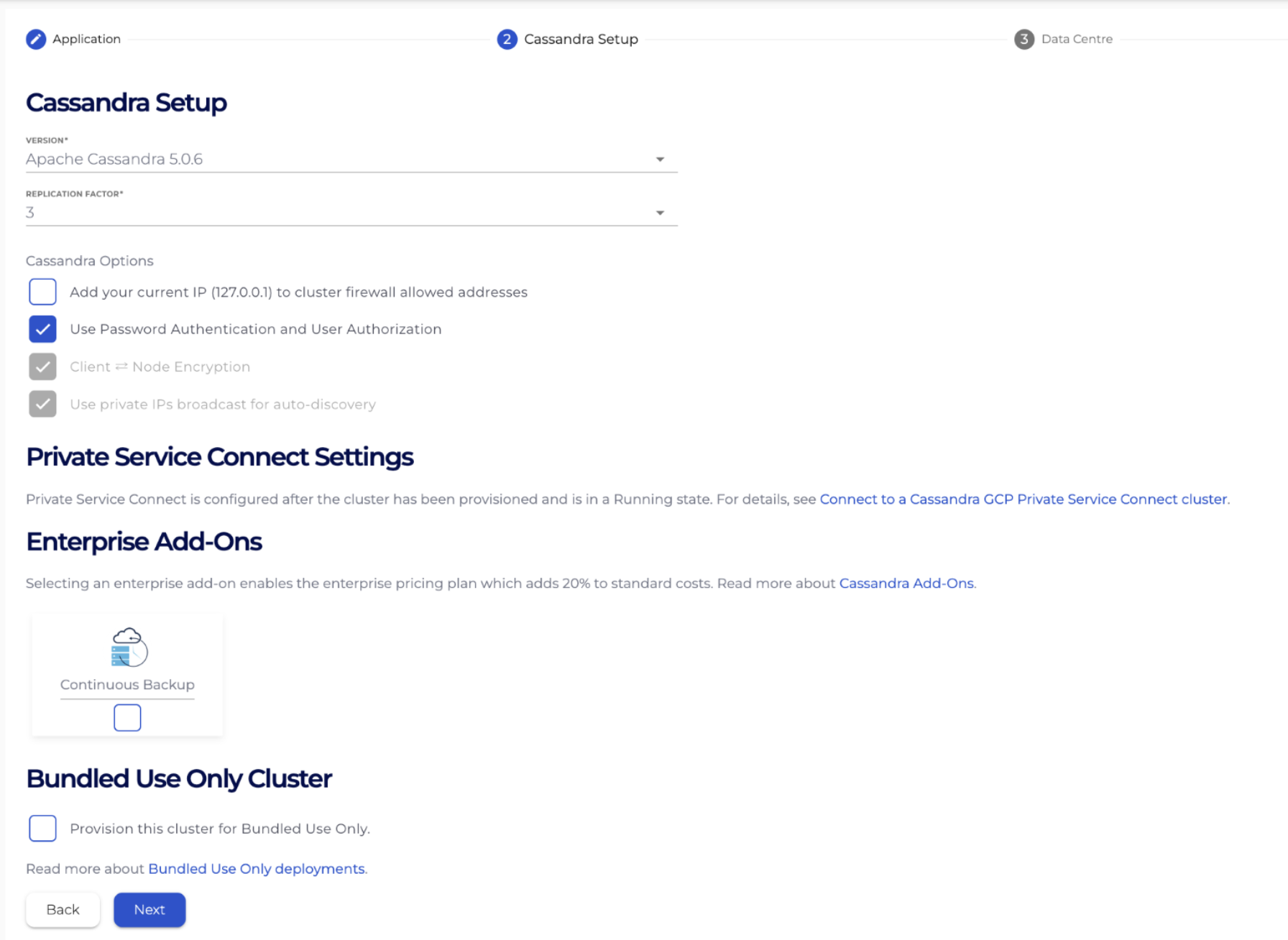
3. Choose a Cassandra version from the dropdown, configure any other settings that is required, and then click Next.
4. Select your desired node sizes for the Cassandra cluster and the Shotover Proxy and your desired Data Centre to provision into.
We recommend selecting a region that is geographically located near to the VPC from where you intend to connect from to reduce latency between the client application and the cluster.
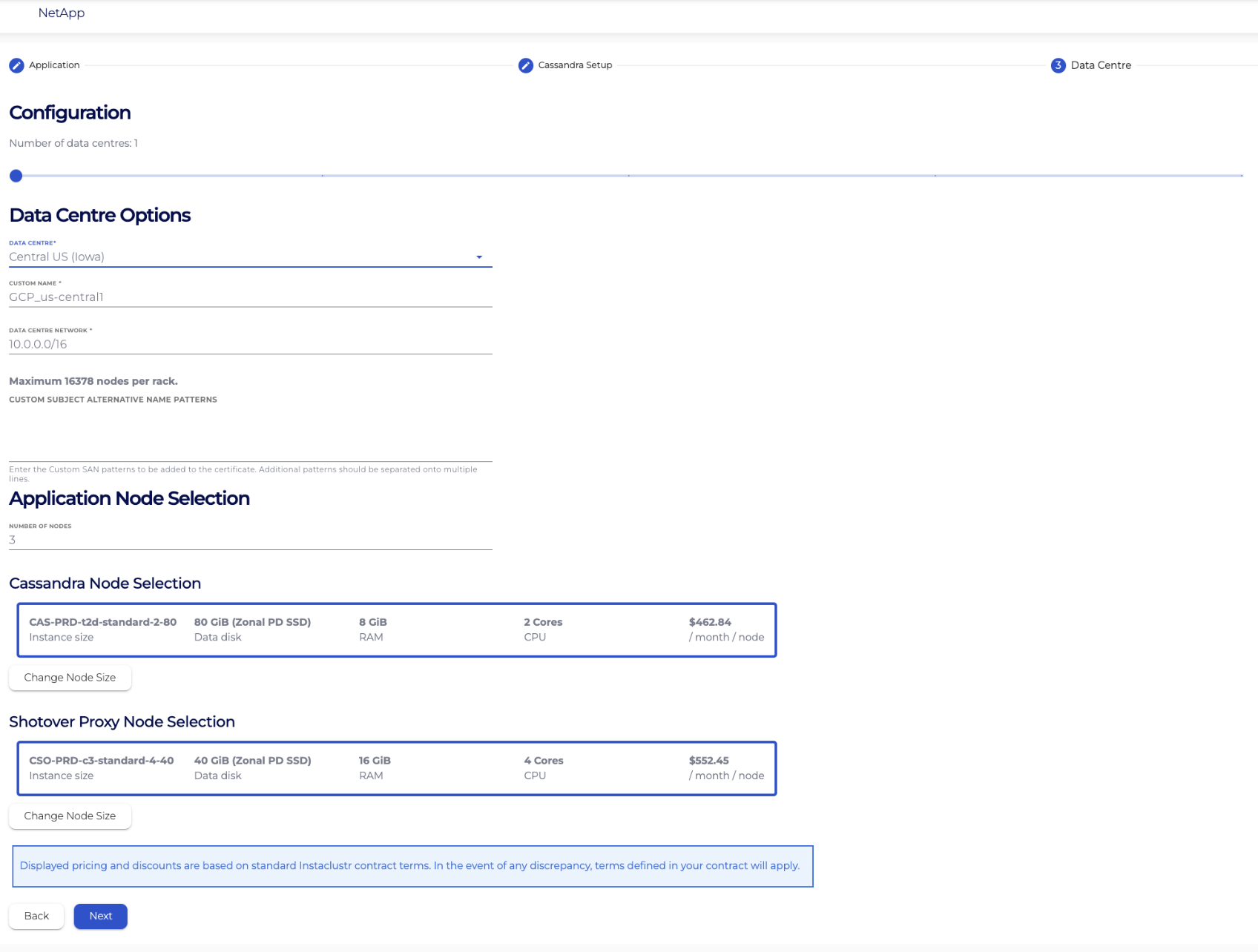
We recommend choosing your Shotover node size in line with the data centre you select. A few examples for common region and capacity combinations are below.
| Data Centre | Shotover Node Size |
| Central US (Iowa) | CSO-PRD-c3-standard-4-40 |
| Central US (Iowa) | CSO-PRD-c3-standard-8-40 |
| Central US (Iowa) | CSO-PRD-n2-standard-4-40 |
5. The confirmation page provides you the opportunity to check the options you have selected on the console. Click the Create Cluster button when you are happy with your selection and agree to the Instaclustr terms and conditions.
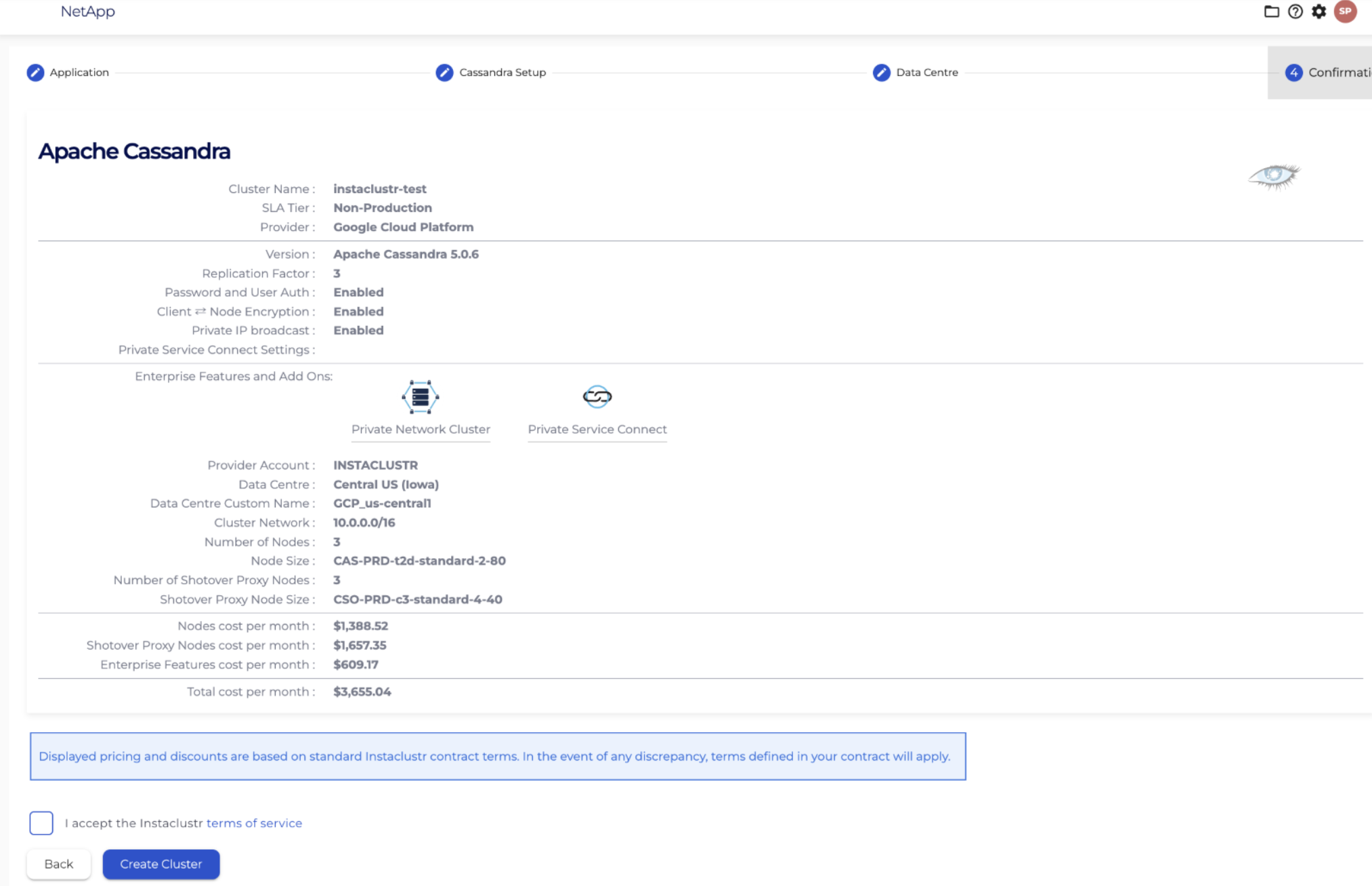
6. Wait for your cluster to reach the RUNNING status. This usually takes around 10 minutes but may take longer depending on the region and number of nodes you have selected. Instaclustr will contact you in the event of an error or provisioning failure.
7. Once your cluster is running, further steps are required to connect to it with your Cassandra client. Please refer to our support page on Connect to a Cassandra GCP PSC cluster steps that need to be taken to connect Cassandra clients in one VPC to a GCP Private Service Connect enabled Cassandra cluster on the Instaclustr platform.
For more information on GCP Private Service Connect, please refer to our support documentation or contact Instaclustr Support for further assistance.