Connect to a Cassandra GCP Private Service Connect cluster on the Instaclustr platform
This page describes the steps to connect Cassandra clients in your Google Cloud VPC to a GCP Private Service Connect (PSC) enabled Cassandra cluster on the Instaclustr platform.
Throughout this documentation, you will:
- configure network access in your GCP project
- create Private Service Connect endpoints that target Instaclustr’s published service attachments
- complete consumer project allow-listing and IP address registration in the Instaclustr Console
- configure your Cassandra client to use TLS and the cluster CA from Instaclustr
Pre-requisites
You will need a running Cassandra cluster on GCP with Private Service Connect enabled. For provisioning steps, see Creating a GCP Private Service Connect enabled Apache Cassandra cluster on the Instaclustr platform.
Table of Contents
Set up GCP Private Service Connect endpoints
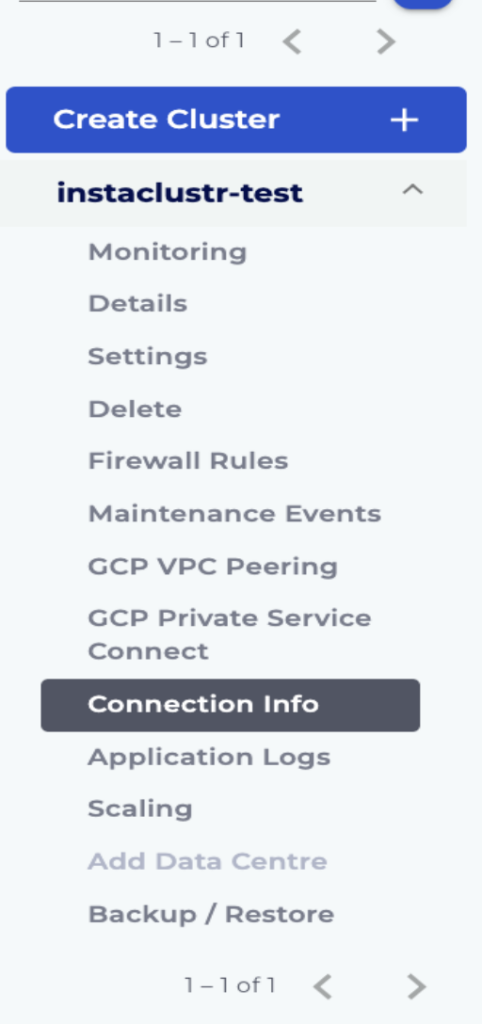
1. In the Instaclustr Console, navigate to the Connection Info page in the menu under your cluster’s name (as highlighted in the below screenshot).
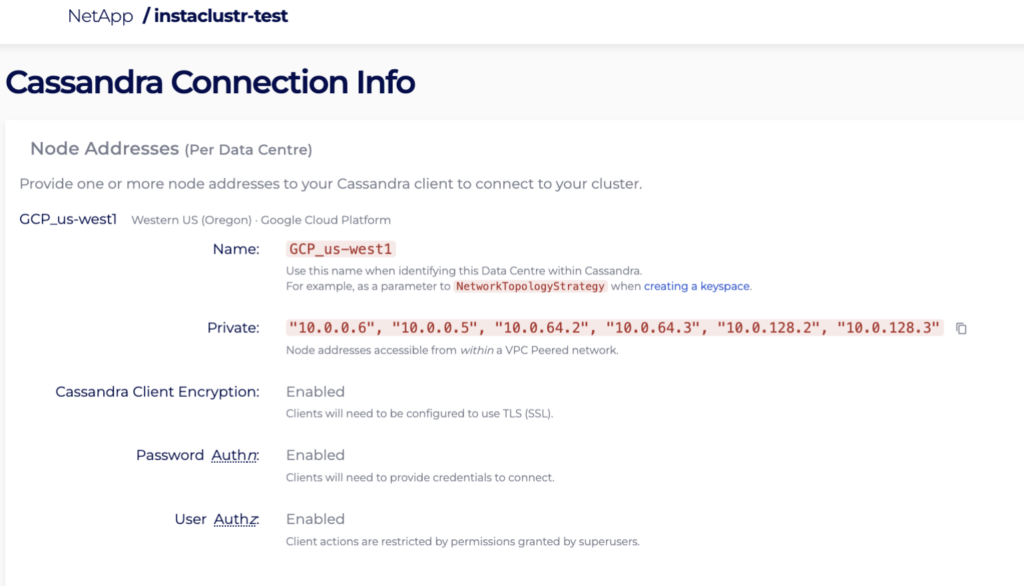
2. Take a note of the identifiers you will use to find published services in GCP (for example the data centre identifier used in your Console and GCP search/filter).
3. In the Google Cloud Console, open Network services → Private Service Connect and go to the area that lists published services.
4. Filter or search using the value from step 2 so you see each published service for your cluster. Open each result your topology requires (commonly one per published attachment associated with your data centre layout).
5. Copy the service attachment URI. It has the form shown below:
|
1 |
projects/<publisher-project>/regions/<region>/serviceAttachments/<attachment-id> |
6. Open Connected endpoints (or Endpoints for consumer PSC).
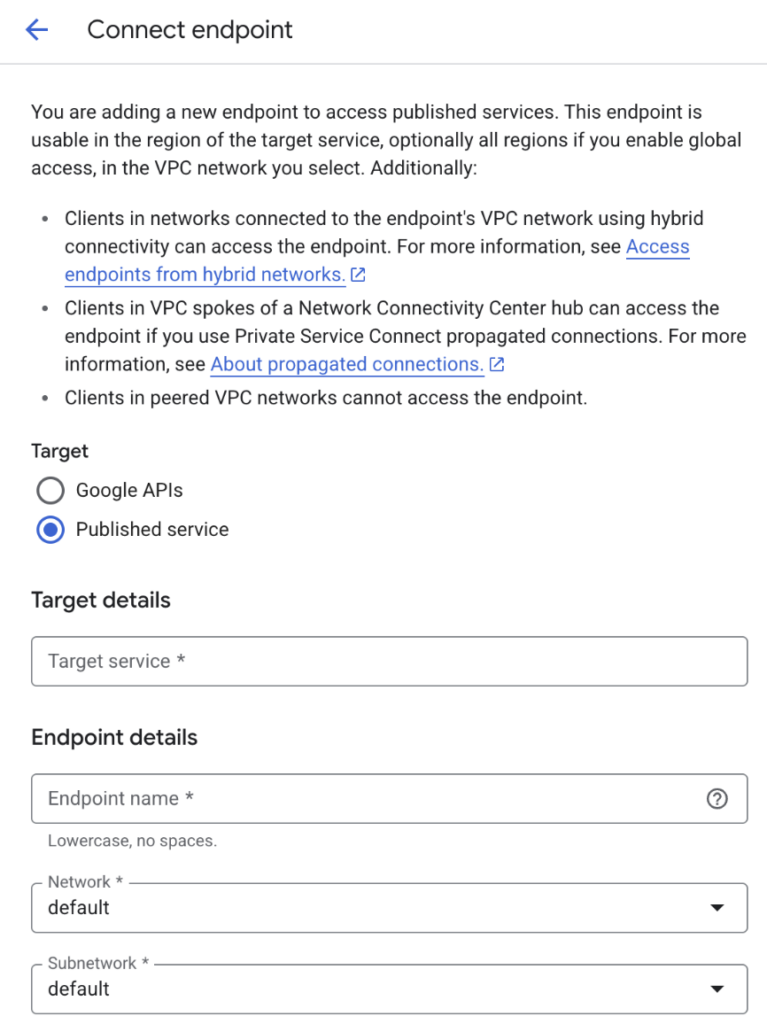
7. Click Connect endpoint.
8. Set Target to Published service.
9. Paste the service attachment URI into Target service and complete verification if the console prompts you.
10. Set Endpoint name to a stable value (the attachment ID segment after serviceAttachments/ is often used).
11. Under Network, select the VPC used by your clients. Under Subnetwork, select the subnetwork for the endpoint’s internal IP. You must choose these explicitly; the console may not default to the network you expect.
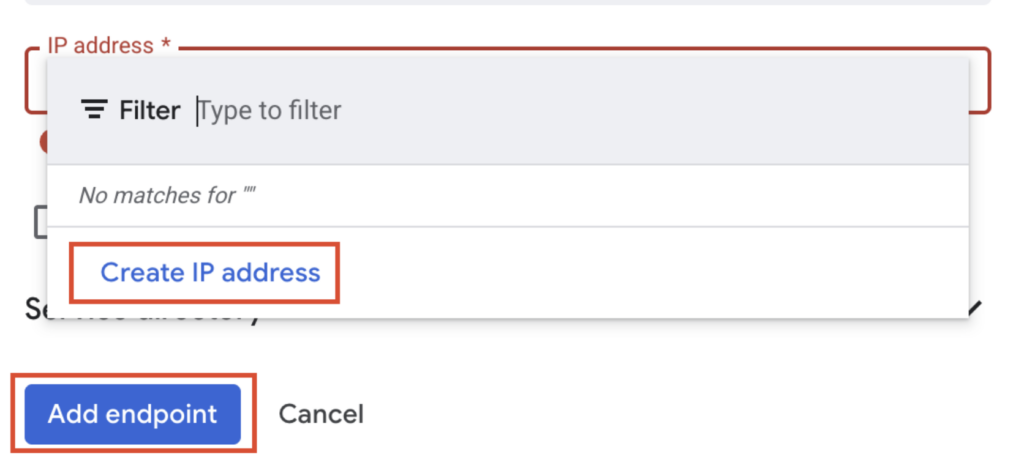
12. Under IP address, create a new internal static IP or select an existing address in that subnetwork.
13. Create the endpoint. Repeat steps 5–12 for each published service your cluster requires.
Register allowed consumer projects and endpoint IP addresses in the Instaclustr Console
1. After PSC endpoints exist, Instaclustr must allow your GCP consumer project and record the endpoint IPs so the cluster can advertise the correct addresses.
2. In the Google Cloud Console, note the internal IP address assigned to each connected endpoint from the previous section.
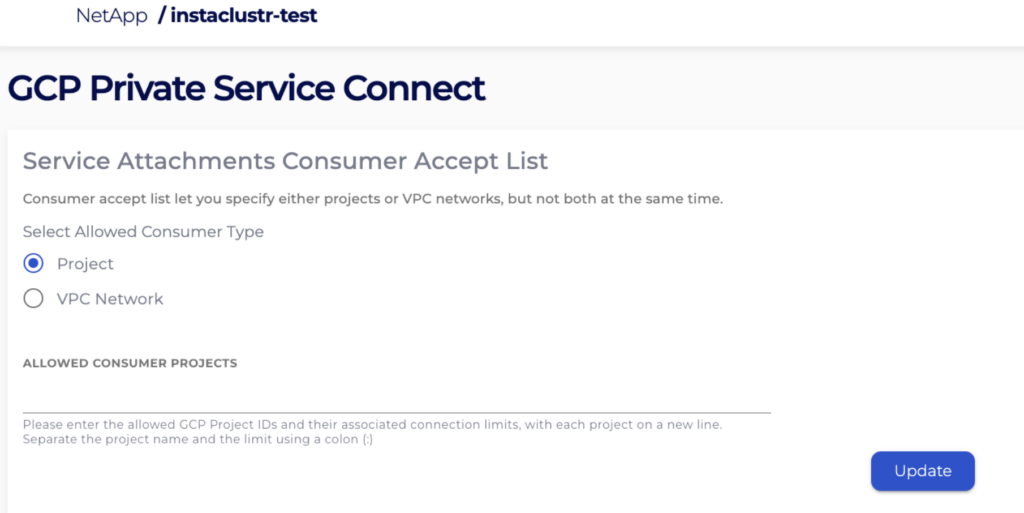
3. In the Instaclustr Console, open your cluster → GCP Private Service Connect.
4. Set Allowed consumer projects to your GCP project in the format the field expects (for example project-id:project-number). Save or update as prompted.
Note: Without this step, endpoints typically remain pending and cannot complete.
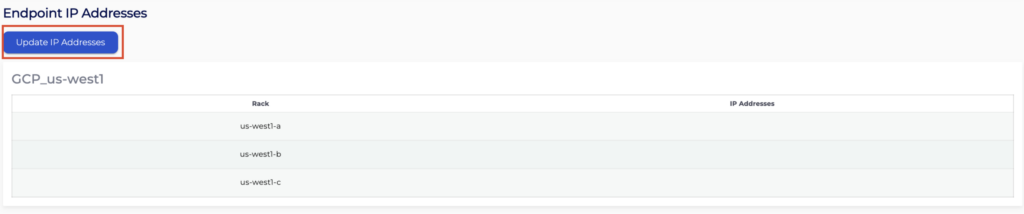
5. Click Update DNS names if your workflow requires refreshing DNS metadata before IP updates (follow the on-screen control labels for your cluster version).
6. Enter the IPs you assigned to the endpoints in step 2 into the IP ADDRESS FOR * ENDPOINT text boxes shown below and click Update IP Addresses:
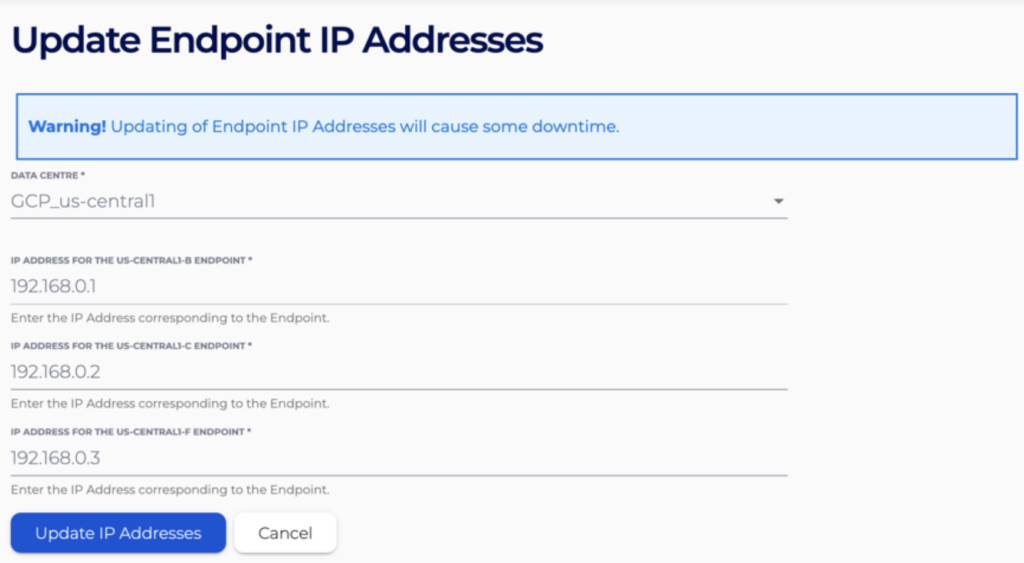
7. Confirm the update.
Note: Updating IP addresses and related proxy configuration may require a configuration reload and can cause brief loss of client connectivity until the service is ready again. Plan changes in a maintenance window if your policy requires it.
Connect your client to the GCP Private Service Connect enabled Cassandra cluster
Lastly you will need to download the Cluster CA certificate to configure your client so that a secure connection to the GCP Private Service Connect can be established.
1. Go to the Connection Info page to download the Cluster CA certificate. Use this Cluster CA certificate to access the Cassandra GCP Private Service Connect cluster.

2. Alternatively, customers can use the connection examples that are provided in Python, Java, CQL to create the connect Cassandra clients in one VPC to the GCP Private Service Connect enabled Cassandra cluster on the Instaclustr platform.
3. Your client should now reach the cluster over Private Service Connect with TLS to the Instaclustr service.
For more information on GCP Private Service Connect, please refer to our Creating a GCP Private Service Connect enabled Apache Cassandra cluster on the Instaclustr platform or contact Instaclustr Support for further assistance.